Build a Custom ChatGPT App and Tap Into 800 Million Users
\ A few weeks ago, OpenAI introduced Apps for ChatGPT. As you can see below, it enables businesses to inject their product right into the chat to help satisfy the user’s prompt.
\ 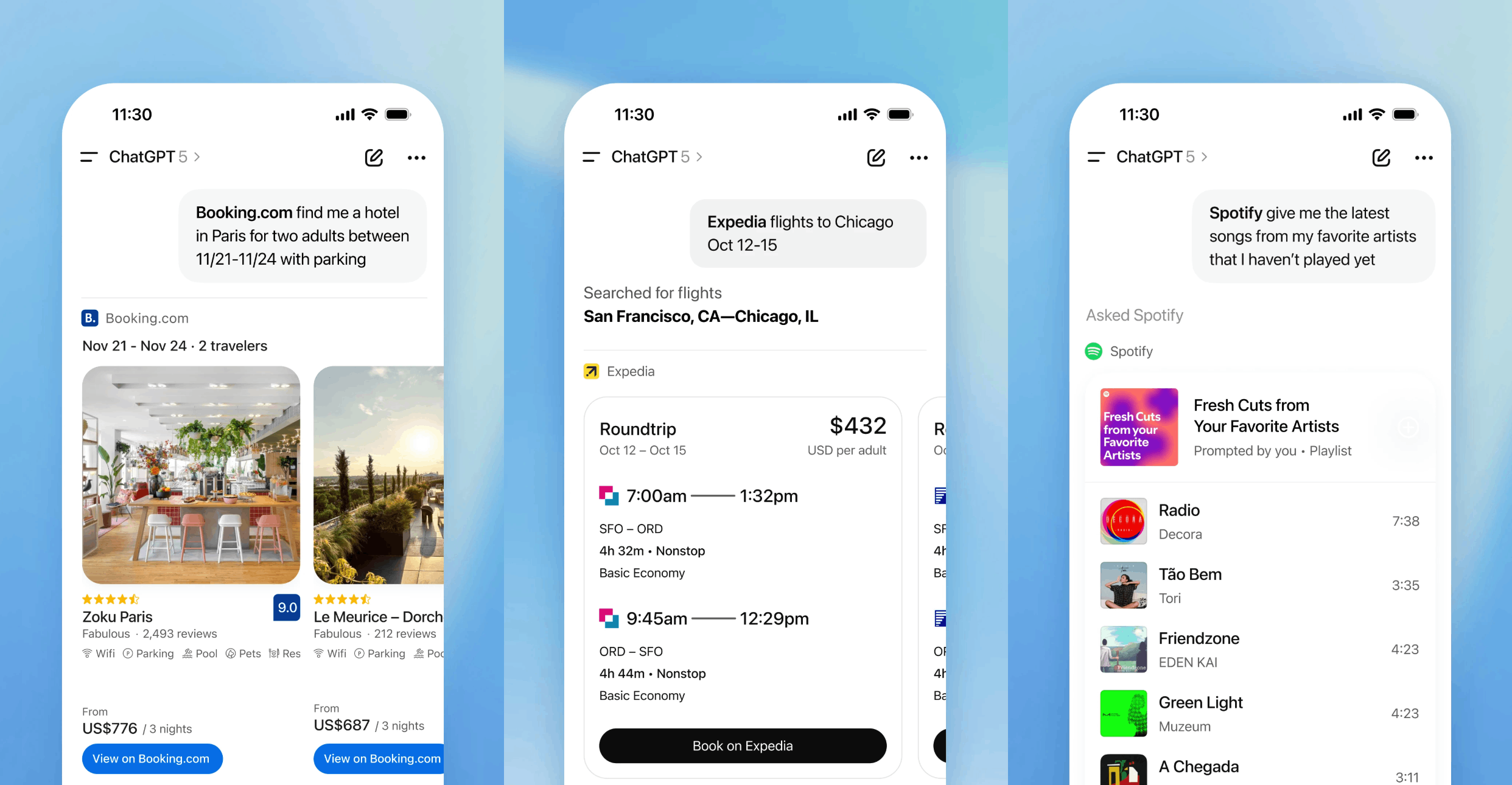
An app can be triggered either by an explicit mention or when the model decides that the app is going to be useful.
So, what is a ChatGPT App?
- For a customer, it's a way to get richer user experience and functionality, beyond the constraints of a textual interface.
- For a business, it's a way to reach over 800 million ChatGPT users at just the right time.
- For a developer, it's an MCP server and a web app that runs in an iframe <= that’s what we’re here to talk about!
Demo
In this post, I'll walk through building a simple quiz app, shown below, using it as an example to demonstrate available features.
:::info Important Note: If you want to follow along, you will need a paid ChatGPT subscription to enable Developer Mode. A standard $20/month customer subscription will suffice.
:::
High-level flow
Here's how it works at a high level (the actual order of steps can vary slightly):
First, the developer of the app registers it within ChatGPT by providing a link to the MCP server that implements the app (1). MCP stands for Model Context Protocol, and it allows models like ChatGPT explore and interact with other services. Our MCP server will have “tools” and “resources” needed to create a ChatGPT quiz app. At this step, ChatGPT learns and remembers what our app does and when it can be useful.
\ 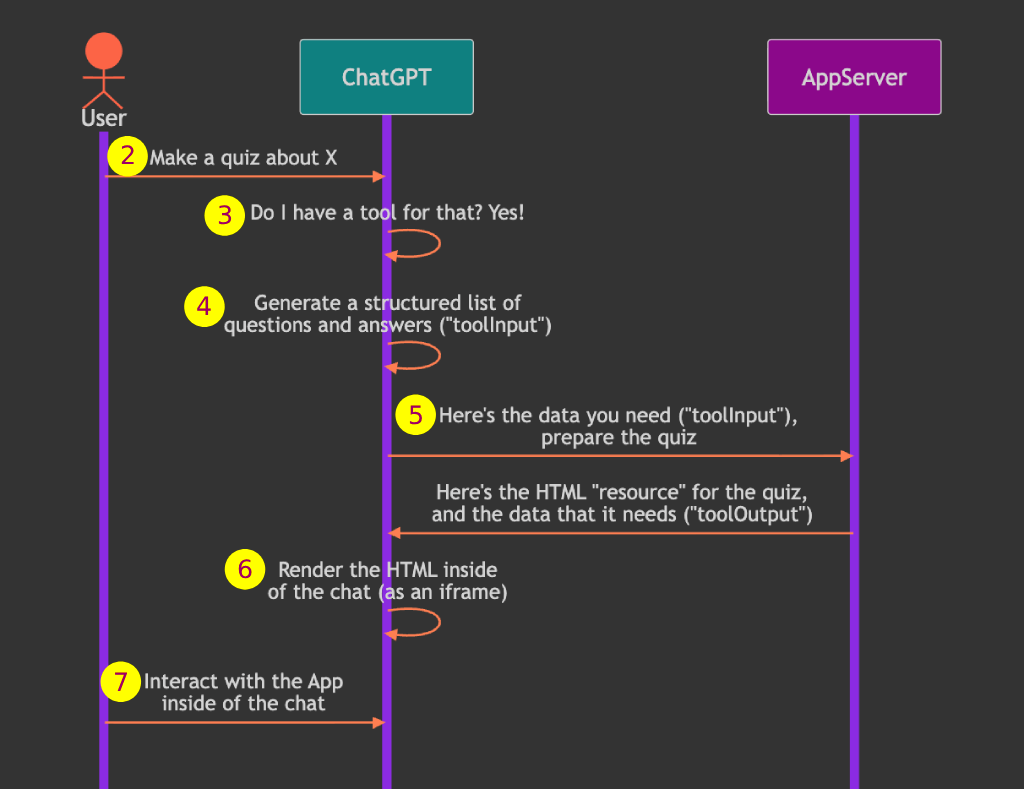
When the App already exists and the user makes a prompt (2) like “Make a quiz about Sam Altman”, ChatGPT will check if there is an App it can use instead of a text response to provide better experience to the user (3).
If an App is found, ChatGPT looks at the schema of the data that the App needs (4). Our App needs to receive the data in the following JSON format:
{ questions: [ { question: "Where was Sam Altman born", options: ["San Francisco", ...], correctIndex: 2, ... }, ... ] }
ChatGPT will generate quiz data exactly in this format, this is called toolInput, and will send it to our app (5).
The App will process the toolInput, and will produce toolOutput. ChatGPT will render HTML “resource” provided by the app in the chat window, and will initialize it with toolOutput data (6). And finally, the user will see the app and will be able to interact with it (7).
Building an MCP Server
Code repo for our ChatGPT app: https://github.com/renal128/quizaurus-tutorial.
There are 2 projects: quizaurus-plain and quizaurus-react. First, we will focus on quizaurus-plain which uses plain JavaScript in the frontend to keep things simple.
All of the server code is in this file - just about 140 lines of code!
- https://github.com/renal128/quizaurus-tutorial/blob/main/quizaurus-plain/src/server.ts
Server setup
There are many options to create an MCP server using any of the SDKs listed here: https://modelcontextprotocol.io/docs/sdk
Here, we will use the Typescript MCP SDK.
The code below shows how to set it up:
// Create an MCP server const mcpServer = new McpServer({ name: 'quizaurus-server', version: '0.0.1' }); // Add the tool that receives and validates questions, and starts a quiz mcpServer.registerTool( ... ); // Add a resource that contains the frontend code for rendering the widget mcpServer.registerResource( ... ); // Create an Express app const expressApp = express(); expressApp.use(express.json()); // Set up /mcp endpoint that will be handled by the MCP server expressApp.post('/mcp', async (req, res) => { const transport = new StreamableHTTPServerTransport({ sessionIdGenerator: undefined, enableJsonResponse: true }); res.on('close', () => { transport.close(); }); await mcpServer.connect(transport); await transport.handleRequest(req, res, req.body); }); const port = parseInt(process.env.PORT || '8000'); // Start the Express app expressApp.listen(port, () => { console.log(`MCP Server running on http://localhost:${port}/mcp`); }).on('error', error => { console.error('Server error:', error); process.exit(1); });
Key points:
- Express app is a generic server that receives communications (like HTTP requests) from the outside (from ChatGPT)
- Using Express, we add an
/mcpendpoint that we will provide to ChatGPT as the address of our MCP server (likehttps://mysite.com/mcp) - The handling of the
/mcpendpoint is delegated to the MCP server, that runs within the Express app - all of the MCP protocol that we need is handled within that endpoint by the MCP server
mcpServer.registerTool(…)andmcpServer.registerResource(…)is what we will use to implement our Quiz app
MCP Tool
Let’s fill in the gap in mcpServer.registerTool(…) placeholder above to register the “tool”.
ChatGPT will read the tool definition when we register the app, and then, when the user needs it, ChatGPT will invoke the tool to start a quiz:
// Add the tool that receives and validates questions, and starts a quiz mcpServer.registerTool( 'render-quiz', { title: 'Render Quiz', description: ` Use this when the user requests an interactive quiz. The tool expects to receive high-quality single-answer questions that match the schema in input/structuredContent: each item needs { question, options[], correctIndex, explanation }. Use 5–10 questions unless the user requests a specific number of questions. The questions will be shown to the user by the tool as an interactive quiz. Do not print the questions or answers in chat when you use this tool. Do not provide any sensitive or personal user information to this tool.`, _meta: { "openai/outputTemplate": "ui://widget/interactive-quiz.html", // <- hook to the resource }, inputSchema: { topic: z.string().describe("Quiz topic (e.g., 'US history')."), difficulty: z.enum(["easy", "medium", "hard"]).default("medium"), questions: z.array( z.object({ question: z.string(), options: z.array(z.string()).min(4).max(4), correctIndex: z.number().int(), explanation: z.string().optional(), }) ).min(1).max(40), }, }, async (toolInput) => { const { topic, difficulty, questions } = toolInput; // Here you can run any server-side logic to process the input from ChatGPT and // prepare toolOutput that would be fed into the frontend widget code. // E.g. you can receive search filters and return matching items. return { // Optional narration beneath the component content: [{ type: "text", text: `Starting a ${difficulty} quiz on ${topic}.` }], // `structuredContent` will be available as `toolOutput` in the frontend widget code structuredContent: { topic, difficulty, questions, }, // Private to the component; not visible to the model _meta: { "openai/locale": "en" }, }; } );
The top half of the code provides a description of the tool - ChatGPT will rely on it to understand when and how to use it:
descriptiondescribes in details what the tool does. ChatGPT will use it to decide if the tool is applicable to the user prompt.inputSchemais a way to tell ChatGPT exactly what data it needs to provide to the tool and how it should be structured. As you can see above, it contains hints and constraints that ChatGPT can use to prepare a correct payload (toolInput).outputSchemais omitted here, but you can provide it to tell ChatGPT what schemastructuredContentwill have.
So, in a sense, the tool is what defines the ChatGPT App here.
Let’s look at the other 2 fields here:
_meta[“openai/outputTemplate”]is the identifier of the MCP resource that the ChatGPT App will use to render the widget. We will look at in the next section below.async (toolInput) => { …is the function that receivestoolInputfrom ChatGPT and producestoolOutputthat will be available to the widget. This is where we can run any server-side logic to process the data. In our case, we don’t need any processing becausetoolInputalready contains all the information that the widget needs, so the function returns the same data instructuredContentwhich will be available astoolOutputto the widget.
MCP Resource
Below is how we define an MCP resource:
// Add an MCP resource that contains frontend code for rendering the widget mcpServer.registerResource( 'interactive-quiz', "ui://widget/interactive-quiz.html", // must match `openai/outputTemplate` in the tool definition above {}, async (uri) => { // copy frontend script and css const quizaurusJs = await fs.readFile("./src/dist/QuizaurusWidget.js", "utf8"); const quizaurusCss = await fs.readFile("./src/dist/QuizaurusWidget.css", "utf8"); return { contents: [ { uri: uri.href, mimeType: "text/html+skybridge", // Below is the HTML code for the widget. // It defines a root div and injects our custom script from src/dist/QuizaurusWidget.js, // which finds the root div by its ID and renders the widget components in it. text: ` <div id="quizaurus-root" class="quizaurus-root"></div> <script type="module"> ${quizaurusJs} </script> <style> ${quizaurusCss} </style>` } ] } } );
Basically, “resource” here provides the frontend (widget) part of the App.
ui://widget/interactive-quiz.htmlis the resource ID, and it should match_meta[“openai/outputTemplate”]of the tool definition from the previous section above.contentsprovides HTML code of the widget- the HTML here is very simple - we just define the root div
quiz-app-rootand add the custom script that will find that root div by ID, create necessary elements (buttons, etc) and define the quiz app logic. We will look at the script in the next section below.
Building The Widget
Widget implementation
Now, let’s take a quick look at the QuizaurusWidget.js script that implements the widget (the visible part of the app):
// Find the root div defined by the MCP resource const root = document.querySelector('#quiz-app-root'); // create HTML elements inside the root div ... // try to initialize for widgetState to restore the quiz state in case the chat page gets reloaded const selectedAnswers = window.openai.widgetState?.selectedAnswers ?? {}; let currentQuestionIndex = window.openai.widgetState?.currentQuestionIndex ?? 0; function refreshUI() { // Read questions from window.openai.toolOutput - this is the output of the tool defined in server.ts const questions = window.openai.toolOutput?.questions; // Initially the widget will be rendered with empty toolOutput. // It will be populated when ChatGPT receives toolOutput from our tool. if (!questions) { console.log("Questions have not yet been provided. Try again in a few sec.") return; } // Update UI according to the current state ... }; // when an answer button is clicked, we update the state and call refreshUI() optionButtons.forEach((b) => { b.onclick = (event) => { const selectedOption = event.target.textContent selectedAnswers[currentQuestionIndex] = selectedOption; // save and expose selected answers to ChatGPT window.openai.setWidgetState({ selectedAnswers, currentQuestionIndex }); refreshUI(); }; }); ... // at the end of the quiz, the user can click this button to review the answers with ChatGPT reviewResultsButton.onclick = () => { // send a prompt to ChatGPT, it will respond in the chat window.openai.sendFollowUpMessage({ prompt: "Review my answers and explain mistakes" }); reviewResultsButton.disabled = true; }; startQuizButton.onclick = refreshUI; refreshUI();
Reminder: this code will be triggered by the HTML that we defined in the MCP resource above (the <script type="module">… thing). The HTML and the script will be inside of an iframe on the ChatGPT chat page.
ChatGPT exposes some data and hooks via the window.openai global object. Here’s what we’re using here:
window.openai.toolOutputcontains the question data returned by the MCP tool. Initially the html will be rendered before the tool returnstoolOutput, sowindow.openai.toolOutputwill be empty. This is a little annoying, but we will fix it later with React.window.openai.widgetStateandwindow.openai.setWidgetState()allow us to update and access the widget state. It can be any data that we want, although the recommendation is to keep it under 4000 tokens. Here, we use it to remember which questions have already been answered by the user, so that if the page gets reloaded, the widget will remember the state.window.openai.sendFollowUpMessage({prompt: “…”})is a way to give a prompt to ChatGPT as if the user wrote it, and ChatGPT will write the response in the chat.- You can find more capabilities in the OpenAI documentation here: https://developers.openai.com/apps-sdk/build/custom-ux
Putting it all together
Time to test it!
A quick reminder, you will need a paid ChatGPT subscription to enable developer mode.
-
[Download the code] Clone this repo https://github.com/renal128/quizaurus-tutorial
-
There are 2 projects in this repo, a minimalistic one, described above, and a slicker-looking React one. We’ll focus on the first one for now.
\
-
[Starting the server] Open a terminal, navigate to the repo directory and run the following commands:
-
cd quizaurus-plain -
install NodeJS if you don’t have it https://nodejs.org/en/download/
-
npm installto install dependencies defined in package.json -
npm startto start the Express app with MCP server - keep it running\
-
[Expose your local server to the web]
-
Create a free ngrok account: https://ngrok.com/
-
Open a new terminal (the other one with the Express app should keep running separately)
-
Install ngrok: https://ngrok.com/docs/getting-started#1-install-the-ngrok-agent-cli
brew install ngrokon MacOS
-
Connect ngrok on your laptop to your ngrok account by configuring it with your auth token: https://ngrok.com/docs/getting-started#2-connect-your-account
-
Start ngrok:
ngrok http 8000-
You should see something like this in the bottom of the output:
Forwarding: https://xxxxx-xxxxxxx-xxxxxxxxx.ngrok-free -
ngrok created a tunnel from your laptop to a public server, so that your local server is available to everyone on the internet, including ChatGPT.
-
Again, keep it running, don’t close the terminal
\
-
-
[Enable Developer Mode on ChatGPT] - this is the part that requires a paid customer subscription, $20/month, otherwise you may not see developer mode available.
-
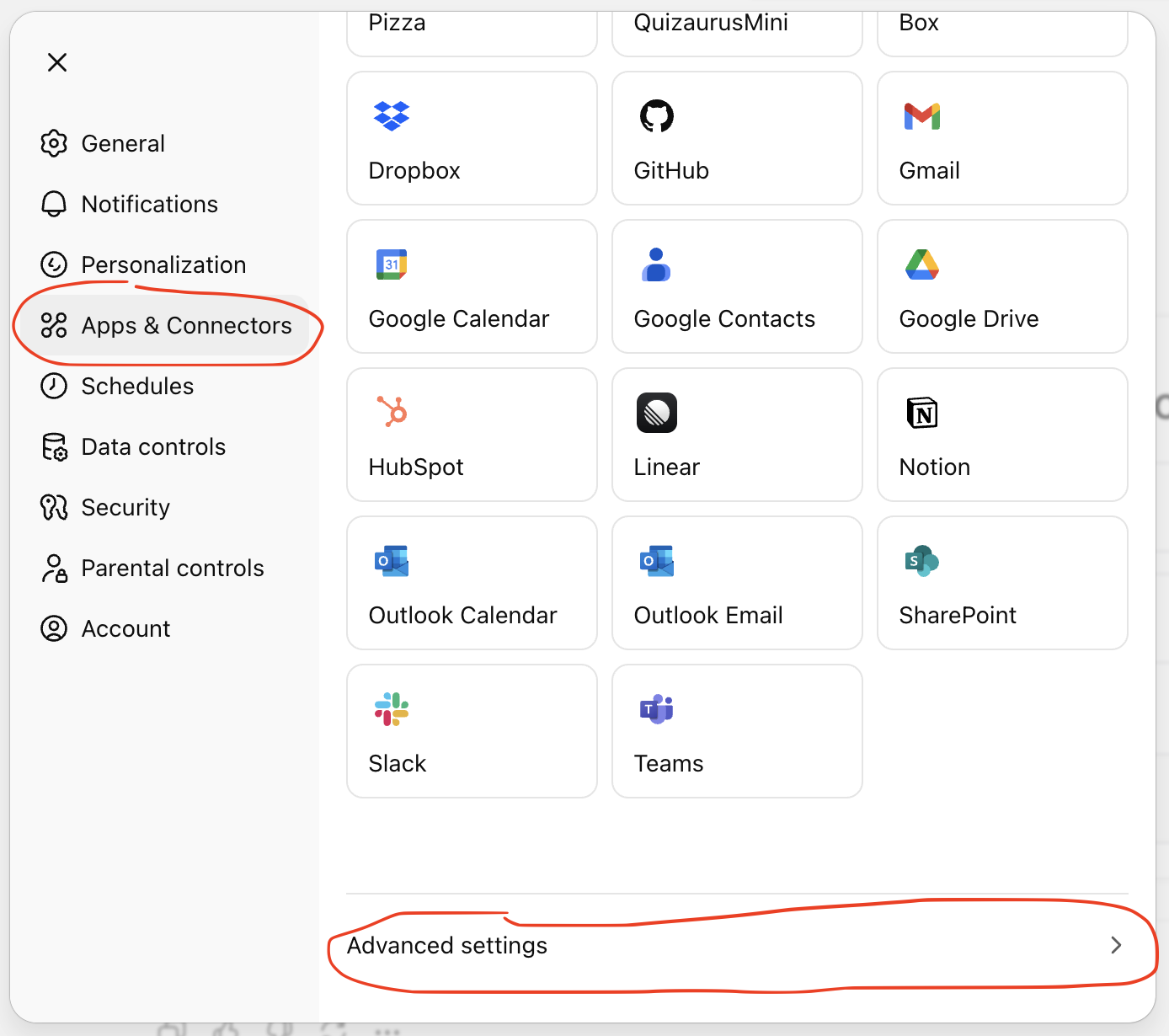
Go to ChatGPT website => Settings => Apps & Connectors => Advanced settings
-
Enable the “Developer mode” toggle
\
-
[Add the app]
-
Go back to “Apps & Connectors” and click “Create” in the top-right corner
-
Fill in the details as on the screenshot. For “MCP Server URL” use the URL that ngrok gave you in the terminal output and add
/mcpto it at the end.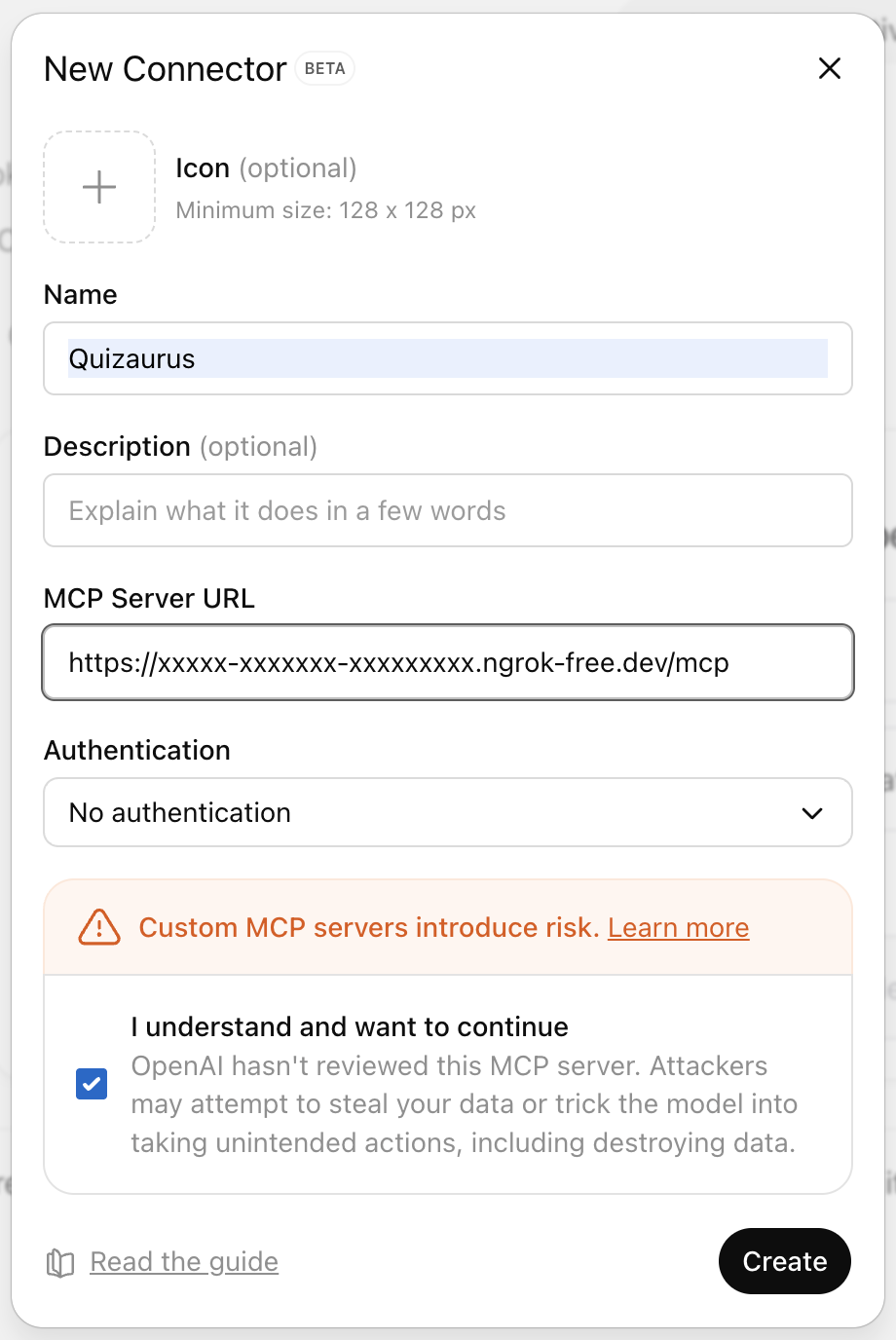
-
Click on your newly added app
-
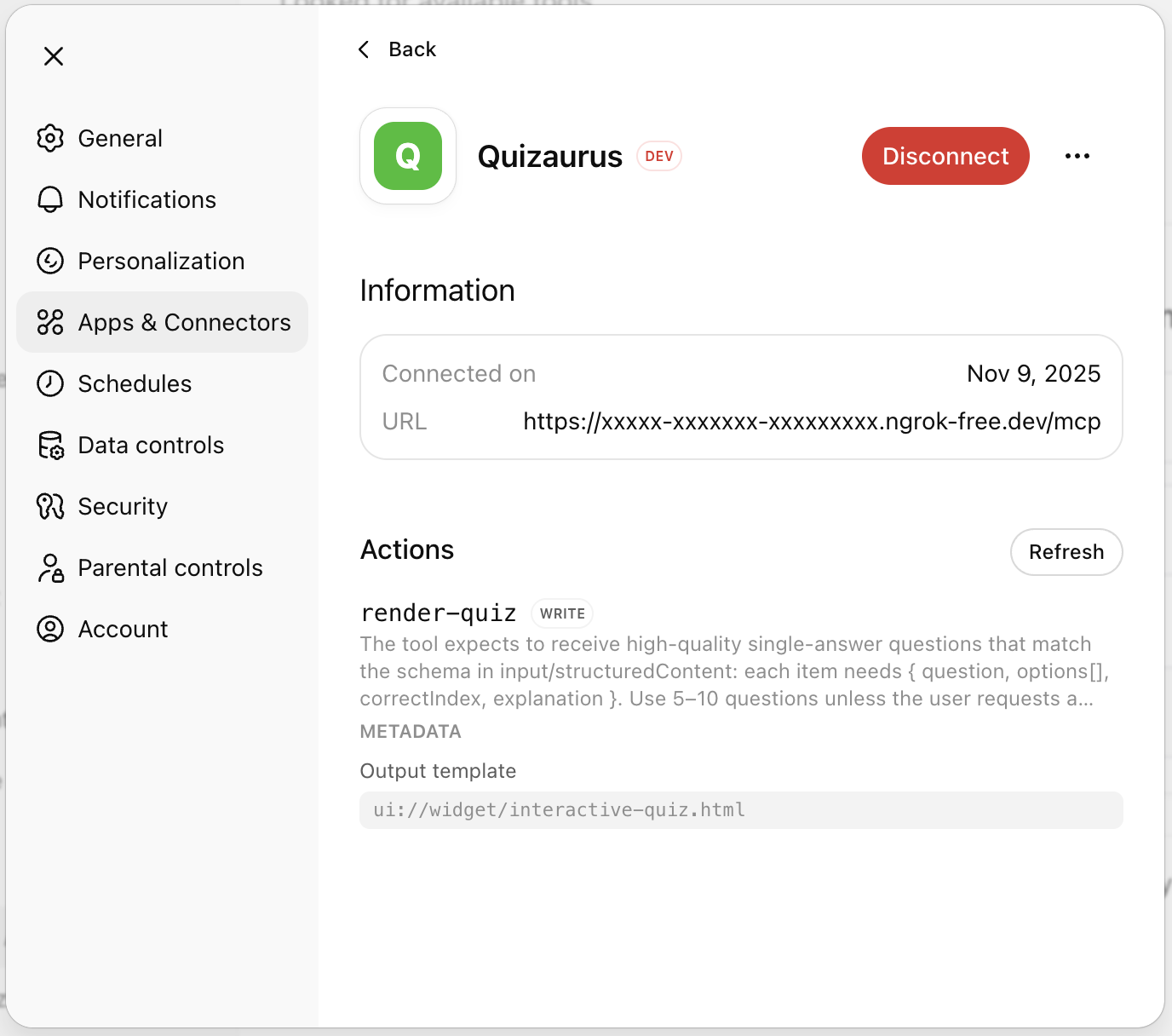
You should see the MCP tool under Actions - now ChatGPT knows when and how to use the app. When you make changes to the code, sometimes you need to click Refresh to make ChatGPT pick up the changes, otherwise it can remain cached (sometimes I even delete and re-add the app due to avoid caching).
\
-
[Test the app] Finally, we’re ready to test it!
-
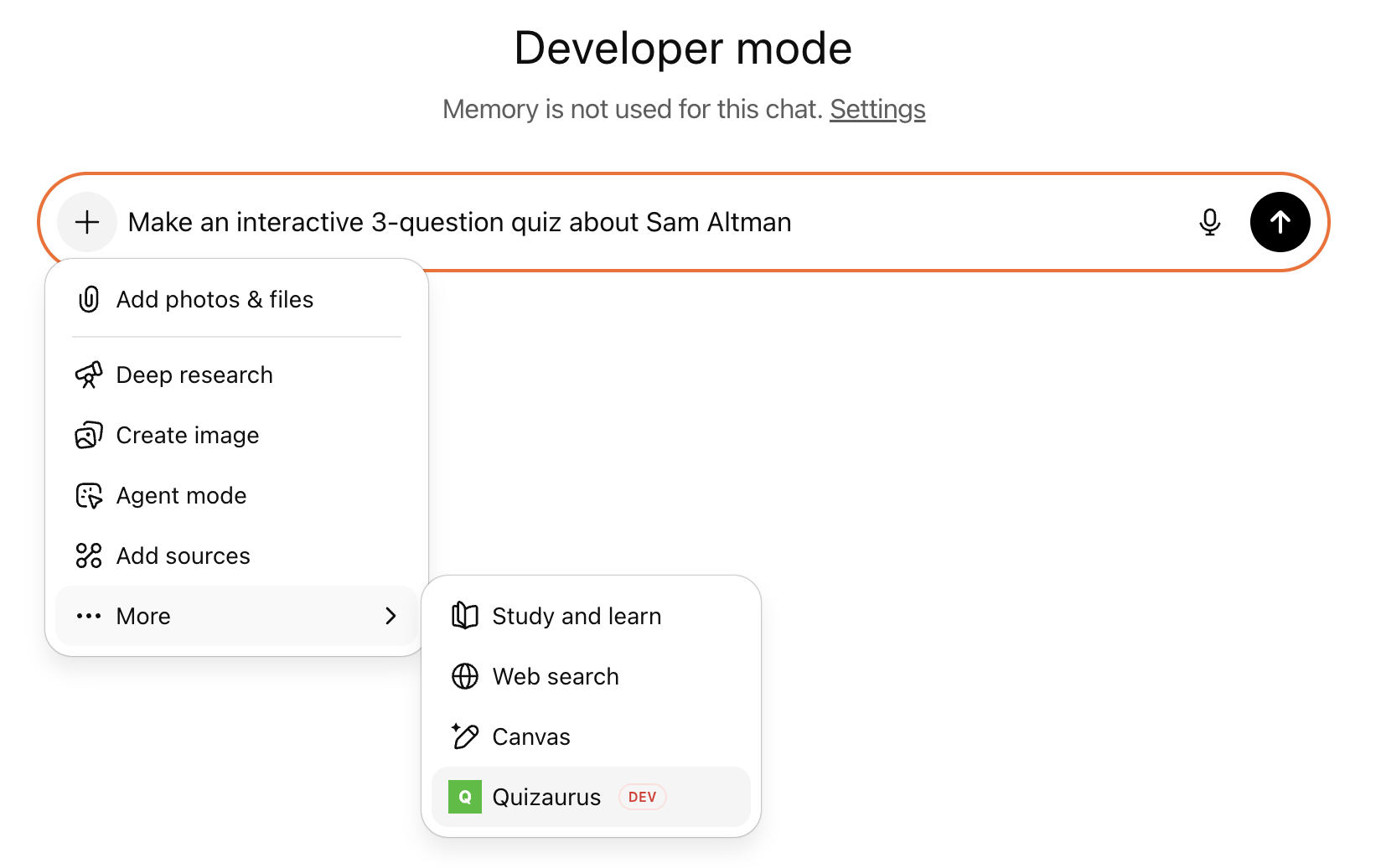
In the chat window you can nudge ChatGPT to use your app by selecting it under the “+” button. In my experience, it’s not always necessary, but let’s do it anyway. Then try a prompt like “Make an interactive 3-question quiz about Sam Altman”. \n
-
You should see ChatGPT asking your approval to call the MCP tool with the displayed
toolInput. I assume that it’s a feature for unapproved apps, and it won’t happen once the app is properly reviewed by OpenAI (although, as of Nov 2025 there’s no defined process to publish an app yet). So, just click “Confirm” and wait a few seconds. -
As I mentioned above, the widget gets rendered before
toolOutputis returned by our MCP server. This means that if you click “Start Quiz” too soon, it won’t do anything - try again a couple seconds later. (we will fix that with React in the next section below). When the data is ready, clicking “Start Quiz” should show the quiz!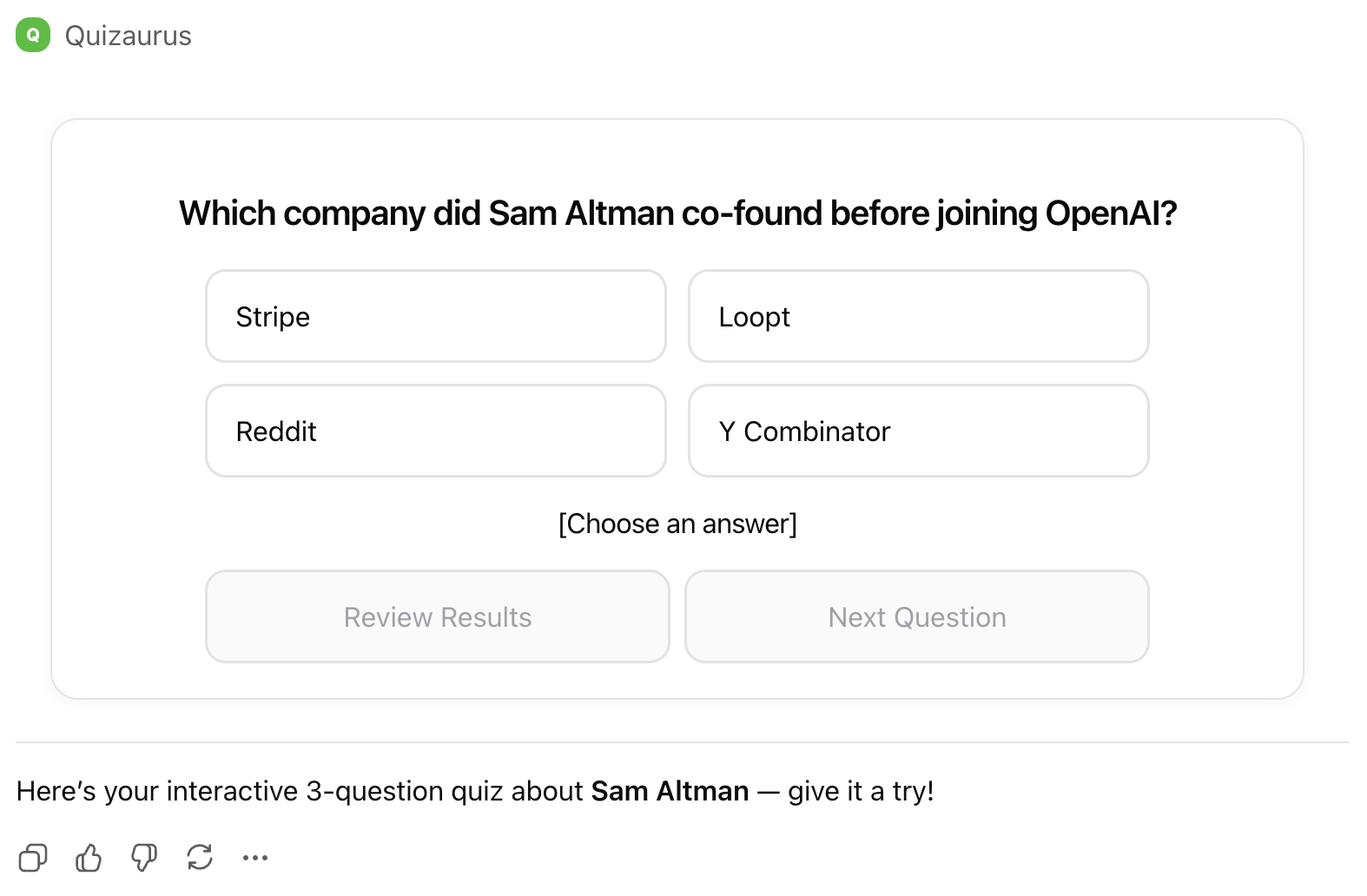
Using React
Above, we looked at the code that uses plain JavaScript. The other project in the same repo, quizaurus-react, demonstrates how to implement a ChatGPT app using React.
You can find some helpful documentation from OpenAI here: https://developers.openai.com/apps-sdk/build/custom-ux/.
useOpenAiGlobal helper hooks
You can see them here, the code is copied from the documentation: https://github.com/renal128/quizaurus-tutorial/blob/main/quizaurus-react/web/src/openAiHooks.ts
The most useful one is useToolOutput , which lets you subscribe the React app to the updates in window.openai.toolOutput. Remember that in the plain (non-React) app above, we had the issue that the “Start Quiz” button wasn’t doing anything until the data is ready? Now we can improve the UX by showing a loading animation:
function App() { const toolOutput = useToolOutput() as QuizData | null; if (!toolOutput) { return ( <div className="quiz-container"> <p className="quiz-loading__text">Generating your quiz...</p> </div> ); } // otherwise render the quiz ... }
When toolOutput gets populated, React will automatically re-render the app and will show the quiz instead of the loading state.
React Router
The navigation history of the iframe in which the app is rendered is connected to the navigation history of the page, so you can use routing APIs such as React Router to implement navigation within the app.
Other quirks and features
Note: ChatGPT app development is not very stable at the moment, as the feature is not fully rolled out, so it’s fair to expect unannounced changes to the API or minor bugs. Please rely on the official documentation for the latest updates: https://developers.openai.com/apps-sdk
How & when ChatGPT decides to show your app to the user
- App Metadata. The most important part is that your app’s metadata, such as the tool description, must feel relevant to the conversation. ChatGPT’s goal here is to provide the best UX to the user, so obviously if the app’s description is irrelevant to the prompt, the app won’t be shown. I’ve also seen ChatGPT asking the user to rate if the app was helpful or not, I suppose this feedback is also taken into account.
- Official recommendations: https://developers.openai.com/apps-sdk/guides/optimize-metadata
- App Discovery. The app needs to be linked/connected to the user’s account in order to be used. How would the user know to link an app? There are 2 ways:
- Manual - go to
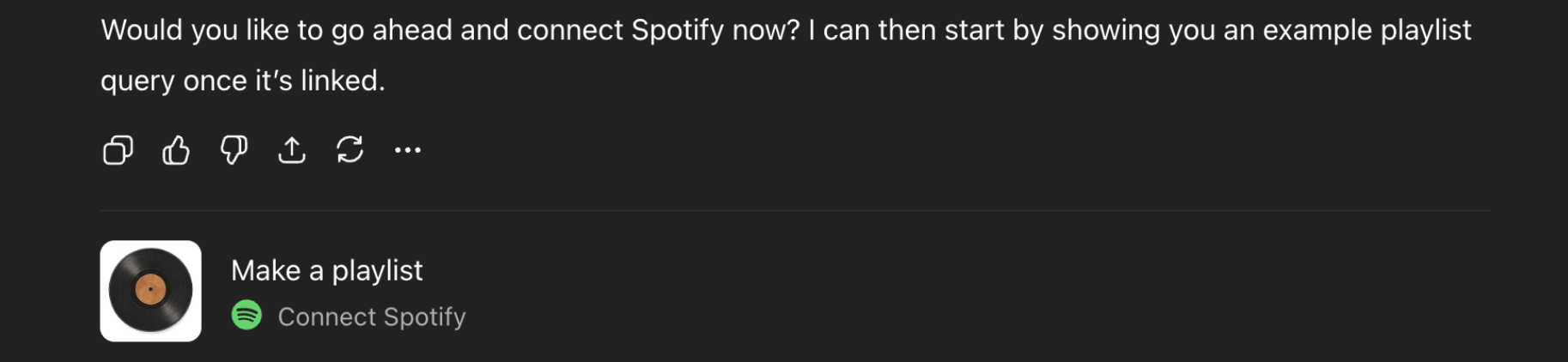
Settings => Apps & Connectorsand find the app there. - Contextual Suggestion - if the app is not connected, but is highly relevant in the conversation, ChatGPT may offer to connect it. I wasn’t able to make it work with my app, but I saw it working with pre-integrated apps like Zillow or Spotify:
- Triggering a Connected App. Once the app is connected, ChatGPT can use it in a conversation when appropriate. The user can nudge it by simply mentioning the app name in the text, typing @AppName or clicking the
+button and selecting the app in the menu there.
Supported platforms
- Web - since it’s implemented via iframe, web is the easiest platform to support and I had almost no issues there.
- Mobile app - if you connect the app on web, you should, be able to see it on mobile. I wasn’t able to trigger the app on mobile - it was failing to call the tool, but when I triggered the app on web, I was able to interact with it on mobile. Probably a temporary bug.
Authentication
ChatGPT Apps support OAuth 2.1: https://developers.openai.com/apps-sdk/build/auth
This is a big topic, let me know if it would be helpful to write a separate post about it!
Making Network Requests
Here’s what the documentation says (source): “Standard fetch requests are allowed only when they comply with the CSP. Work with your OpenAI partner if you need specific domains allow-listed.”
In another place (here), it suggests configuring _meta object in the resource definition to enable your domains:
_meta: { ... /* Assigns a subdomain for the HTML. When set, the HTML is rendered within `chatgpt-com.web-sandbox.oaiusercontent.com` It's also used to configure the base url for external links. */ "openai/widgetDomain": 'https://chatgpt.com', /* Required to make external network requests from the HTML code. Also used to validate `openai.openExternal()` requests. */ 'openai/widgetCSP': { // Maps to `connect-src` rule in the iframe CSP connect_domains: ['https://chatgpt.com'], // Maps to style-src, style-src-elem, img-src, font-src, media-src etc. in the iframe CSP resource_domains: ['https://*.oaistatic.com'], } }
Another thing you could use is the window.openai.callTool callback. Your app widget (frontend) can use it to call a tool on your MCP server - you provide the MCP tool name and toolInput data and receive back toolOutput:
await window.openai?.callTool("my_tool_name", { "param_name": "param_value" });
Other frontend features
See this documentation for what’s available to your frontend code via window.openai: https://developers.openai.com/apps-sdk/build/custom-ux
You can access the following fields (e.g. window.openai.theme will tell you if ChatGPT is currently in the light or dark mode):
theme: Theme; userAgent: UserAgent; locale: string; // layout maxHeight: number; displayMode: DisplayMode; safeArea: SafeArea; // state toolInput: ToolInput; toolOutput: ToolOutput | null; toolResponseMeta ToolResponseMetadata | null; widgetState: WidgetState | null;
Similarly, you can use the following callbacks (e.g. try await window.openai?.requestDisplayMode({ mode: "fullscreen" }); to make your app full-screen):
/** Calls a tool on your MCP. Returns the full response. */ callTool: ( name: string, args: Record<string, unknown> ) => Promise<CallToolResponse>; /** Triggers a followup turn in the ChatGPT conversation */ sendFollowUpMessage: (args: { prompt: string }) => Promise<void>; /** Opens an external link, redirects web page or mobile app */ openExternal(payload: { href: string }): void; /** For transitioning an app from inline to fullscreen or pip */ requestDisplayMode: (args: { mode: DisplayMode }) => Promise<{ /** * The granted display mode. The host may reject the request. * For mobile, PiP is always coerced to fullscreen. */ mode: DisplayMode; }>; /** Update widget state */ setWidgetState: (state: WidgetState) => Promise<void>;
Thank you!
That’s all, thank you for reading and best of luck with whatever you’re building!
You May Also Like

UK crypto holders brace for FCA’s expanded regulatory reach

Dogecoin Price Prediction For 2025, As Analysts Call Pepeto The Next 100x