क्रिप्टो खरीदें
मार्केट
स्पॉट
फ़्यूचर्सBTC
कमाएँ
इवेंट सेंटर
रिवॉर्ड हब
अधिक
How to Manage and Disable NotificationsHow to Manage and Disable Notifications
कैटेगरी की लिस्ट
कैंसिल करें

How to Manage and Disable Notifications

On MEXC, you can flexibly manage different types of notification settings based on your needs. This article explains how to enable or disable App/Web notifications, unsubscribe from AI News Radar updates, hide the floating button, and manage marketing notifications.

1. How to Enable or Disable All App Notifications


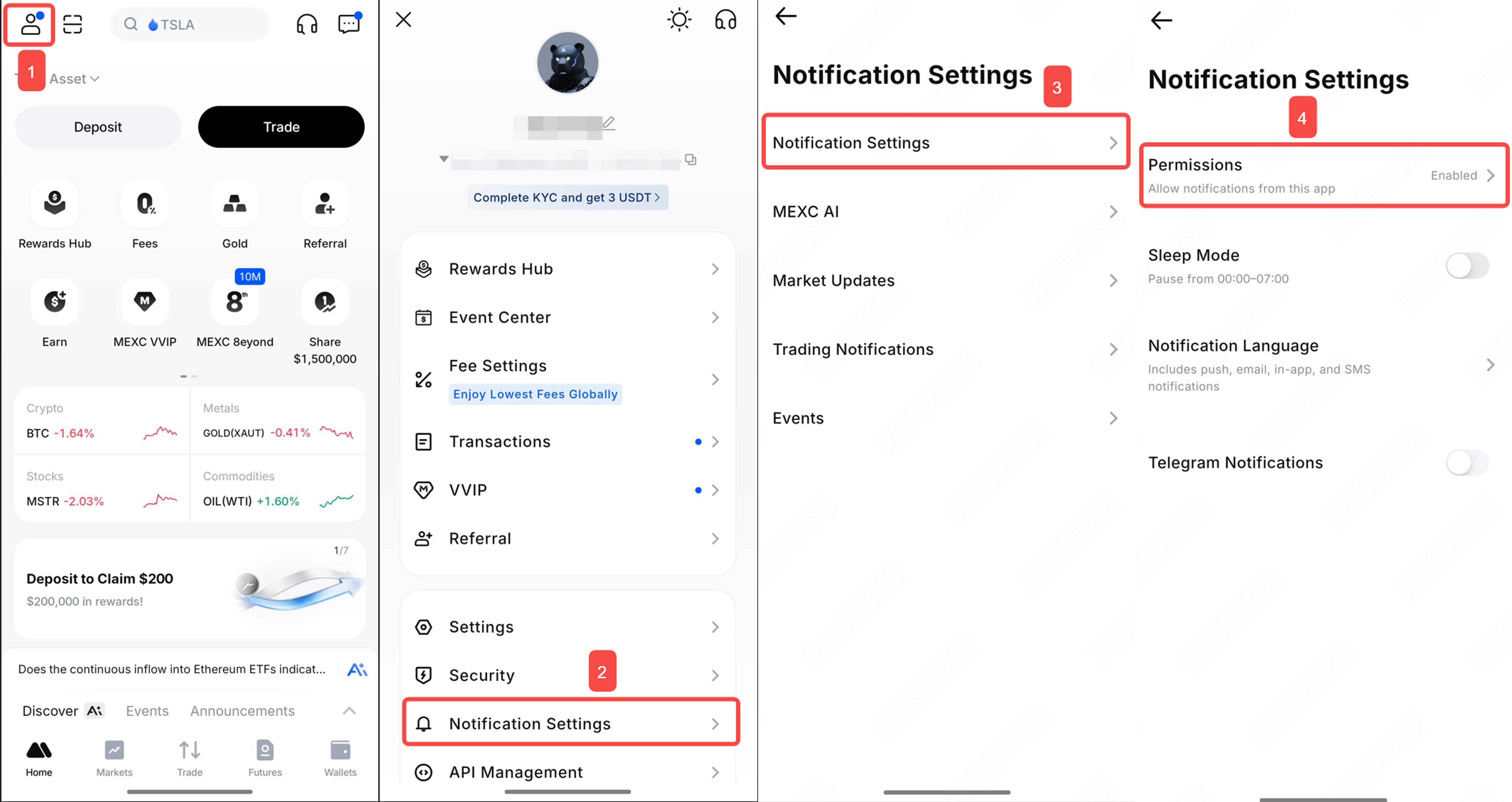
MEXC App homepage → Profile icon → Notification Settings → Notification Settings → Permissions → Enable or disable all notifications.

Please note: After disabling this feature, you will no longer receive important App notifications such as order execution alerts and market movement alerts.

2. How to Unsubscribe From Real-Time AI Feeds Updates


Real-time AI Feeds subscriptions include push notifications and in-app notification messages. You can unsubscribe in either of the following ways:

Method 1: Unsubscribe from the Feeds page

MEXC App homepage → Discover AI → News → Tap Subscribed to unsubscribe.


Method 2: Unsubscribe through notification settings

MEXC App homepage → Profile icon → Notification Settings → MEXC AI → Disable Real-Time Feed Subscriptions.


3. How to Hide the AI Floating Button


MEXC App homepage → Profile icon → Notification Settings → MEXC AI → Disable Home Page and Markets Page under Display Floating Button.

Please note: If you tap the floating button and close it directly with the close icon, it will only be hidden temporarily and may appear again after you log in again or after about 24 hours. To hide the floating button permanently, please disable it through the settings path above.


4. How to Disable Price Movement and New Token Update Notifications


MEXC App homepage → Profile icon → Notification Settings → Market Updates → Disable the relevant options to stop receiving push notifications for price movements and new token updates.


5. How to Disable Trading Notifications


MEXC App homepage → Profile icon → Notification Settings → Trading Notifications.

You can enable or disable notifications related to Spot, Futures, and P2P based on your trading needs. To disable a specific notification feature, please go to the corresponding settings page.


6. How to Disable Marketing Notifications


6.1 Disable marketing email notifications


Web: MEXC official website → Profile icon → Settings → Email Subscriptions to unsubscribe from marketing emails.


App: MEXC App homepage → Profile icon → Notification Settings → Events → Email to unsubscribe from marketing emails.


6.2 Disable App push and top banner notifications


MEXC App homepage → Profile icon → Notification Settings → Events → Push or In-app top banner to unsubscribe.


How to Manage and Disable Notifications

On MEXC, you can flexibly manage different types of notification settings based on your needs. This article explains how to enable or disable App/Web notifications, unsubscribe from AI News Radar updates, hide the floating button, and manage marketing notifications.

1. How to Enable or Disable All App Notifications


MEXC App homepage → Profile icon → Notification Settings → Notification Settings → Permissions → Enable or disable all notifications.

Please note: After disabling this feature, you will no longer receive important App notifications such as order execution alerts and market movement alerts.


2. How to Unsubscribe From Real-Time AI Feeds Updates


Real-time AI Feeds subscriptions include push notifications and in-app notification messages. You can unsubscribe in either of the following ways:

Method 1: Unsubscribe from the Feeds page

MEXC App homepage → Discover AI → News → Tap Subscribed to unsubscribe.


Method 2: Unsubscribe through notification settings

MEXC App homepage → Profile icon → Notification Settings → MEXC AI → Disable Real-Time Feed Subscriptions.


3. How to Hide the AI Floating Button


MEXC App homepage → Profile icon → Notification Settings → MEXC AI → Disable Home Page and Markets Page under Display Floating Button.

Please note: If you tap the floating button and close it directly with the close icon, it will only be hidden temporarily and may appear again after you log in again or after about 24 hours. To hide the floating button permanently, please disable it through the settings path above.


4. How to Disable Price Movement and New Token Update Notifications


MEXC App homepage → Profile icon → Notification Settings → Market Updates → Disable the relevant options to stop receiving push notifications for price movements and new token updates.


5. How to Disable Trading Notifications


MEXC App homepage → Profile icon → Notification Settings → Trading Notifications.

You can enable or disable notifications related to Spot, Futures, and P2P based on your trading needs. To disable a specific notification feature, please go to the corresponding settings page.


6. How to Disable Marketing Notifications


6.1 Disable marketing email notifications


Web: MEXC official website → Profile icon → Settings → Email Subscriptions to unsubscribe from marketing emails.


App: MEXC App homepage → Profile icon → Notification Settings → Events → Email to unsubscribe from marketing emails.


6.2 Disable App push and top banner notifications


MEXC App homepage → Profile icon → Notification Settings → Events → Push or In-app top banner to unsubscribe.