

How to Manage Multi-Device Logins on Your MEXC Account
Key Highlights
- Why manage login devices: Clearing login records of unfamiliar devices in a timely manner can effectively prevent account misuse and protect your funds.
- How to operate: Access Device Management through Security on the App or Web, and remove unrecognized devices with one click.
- Platform protection mechanisms: On the MEXC website, re-login is required after 24 hours. On the app, only one mobile device can be logged in at the same time.
- Response to account compromise: Immediately change your password and update the linked email or phone number. If necessary, freeze the account and contact Customer Service.
1. Why Is It Necessary to Manage Login Devices?
Protecting crypto assets requires not only safeguarding wallet private keys, but also paying close attention to the security of your exchange account. In daily use, you may have logged in to your MEXC account on multiple devices, such as your phone, tablet, or computer, and occasionally even on a friend's device or a public computer. If these login records are not cleared in a timely manner, they may pose potential security risks. To help you better manage account security, MEXC provides a multi-device login management feature that allows you to view and remove login access from unfamiliar devices at any time.
2. How to Manage MEXC Login Devices
2.1 App
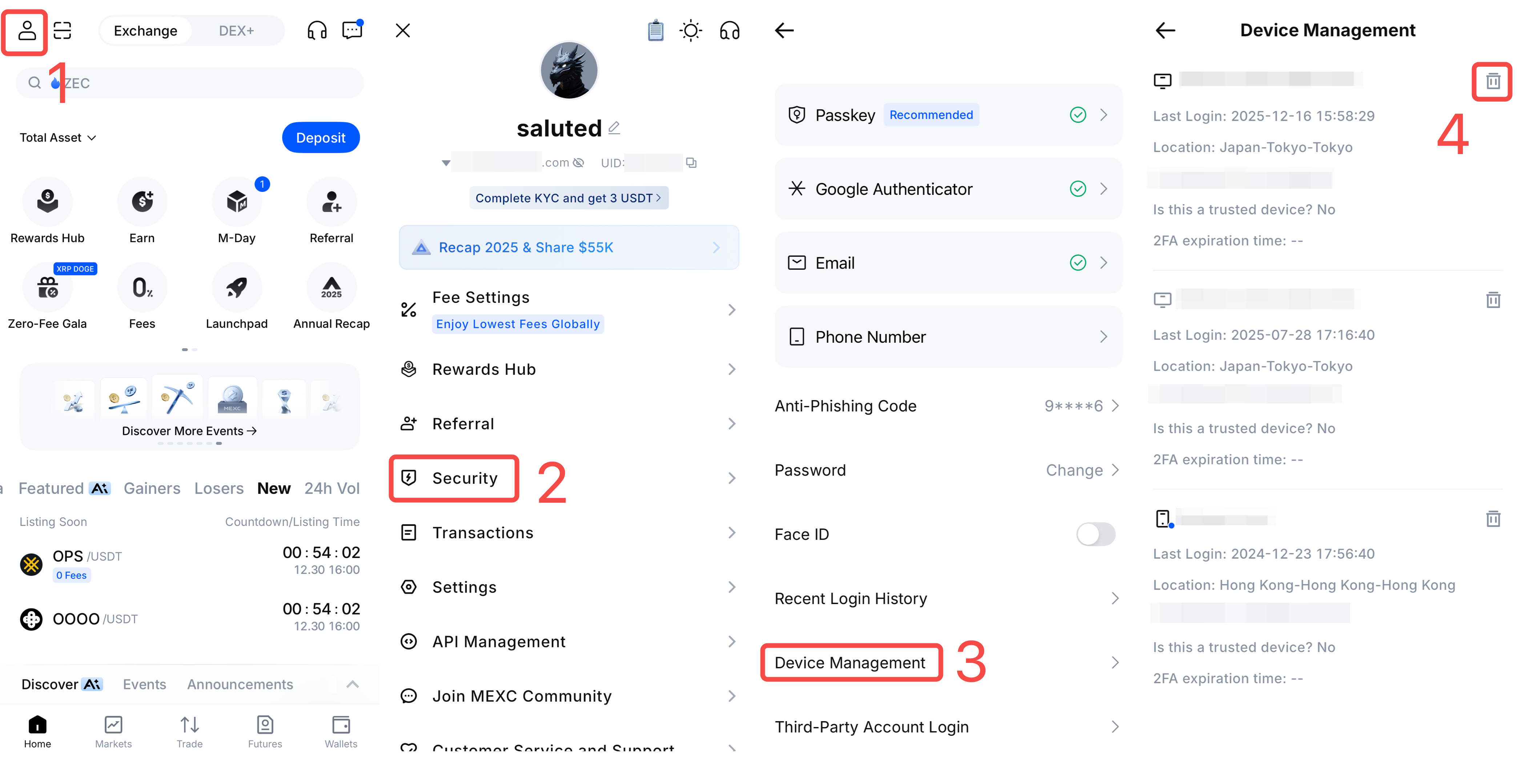
1) Open the MEXC App and sign in to your account. Tap the profile icon on the home page.
2) Tap Security.
3) On the Security page, select Device Management.
4) View the list of all devices that have logged into your account. For any device you do not recognize or no longer use, tap the delete icon to revoke its access.
2.2 Web
Open the MEXC website and log in to your account. From the profile icon on the homepage, select Security.
After entering Security, scroll to the bottom of the page and locate Device Management, then click the Manage button next to it.
On the Device Management page, you can view all devices that have logged into your account. For unfamiliar devices or devices you no longer use, click Remove to revoke their login access.
If you have recently changed your phone or computer, it is recommended to promptly remove the login records of old devices to avoid potential account information exposure.
3. MEXC Account Login Protection Mechanisms
In addition to allowing users to manage login devices on their own, MEXC has implemented multiple built-in security protection mechanisms. On the App, only one mobile device is allowed to remain logged in at the same time. If your account is logged in on another mobile device, the current device will be automatically logged out and a notification will be sent. On the Web, your login session will automatically expire after 24 hours. You will need to log in again to access your account. This design helps effectively reduce the risk caused by forgetting to log out after signing in on a public computer.
4. What to do if your account is compromised
If you detect abnormal login activity or suspect that your account has been compromised, please take the following actions immediately: Go to the Security page to change your login password and update your linked email address and phone number. If you have enabled Google Authenticator, you may remove it and link it again. You may choose to temporarily freeze your account and contact the MEXC Customer Service team for further assistance.