क्रिप्टो खरीदें
मार्केट
स्पॉट
फ़्यूचर्सBTC
कमाएँ
इवेंट सेंटर
रिवॉर्ड हब
अधिक
How to Set Up MEXC Futures Preferences: A Complete Beginner's GuideHow to Set Up MEXC Futures Preferences: A Complete Beginner's Guide
कैटेगरी की लिस्ट
कैंसिल करें

How to Set Up MEXC Futures Preferences: A Complete Beginner's Guide

Key Takeaways:

  • MEXC Futures preferences are available on both web and app, allowing users to customize their trading experience based on personal needs.
  • Core settings include asset mode, position mode, leverage mode, and other essential trading configurations.
  • Features such as Price Protection and Reverse Position Protection help users better manage trading risks.
  • Features such as Flash Trading and Remember Order Amount improve order execution efficiency.
  • The app also supports personalized settings, including notifications, navigation bar management, and interface customization.

1. What Are MEXC Futures Preferences?


To help users create a trading environment that better suits their needs, MEXC provides comprehensive Futures preferences.

Through preferences, users can customize key trading settings, including asset mode, position mode, and leverage mode. They can also enable risk management features such as price protection and reverse position protection to create a more personalized Futures trading experience.

Whether you are new to Futures trading or an experienced trader, configuring preferences properly can make the trading process smoother and more secure. The following sections introduce the setup steps for both web and app.


2. How to Set Up Futures Preferences on Web


1)Open and log in to the MEXC website, then click Futures in the top navigation bar to enter the Futures trading page.

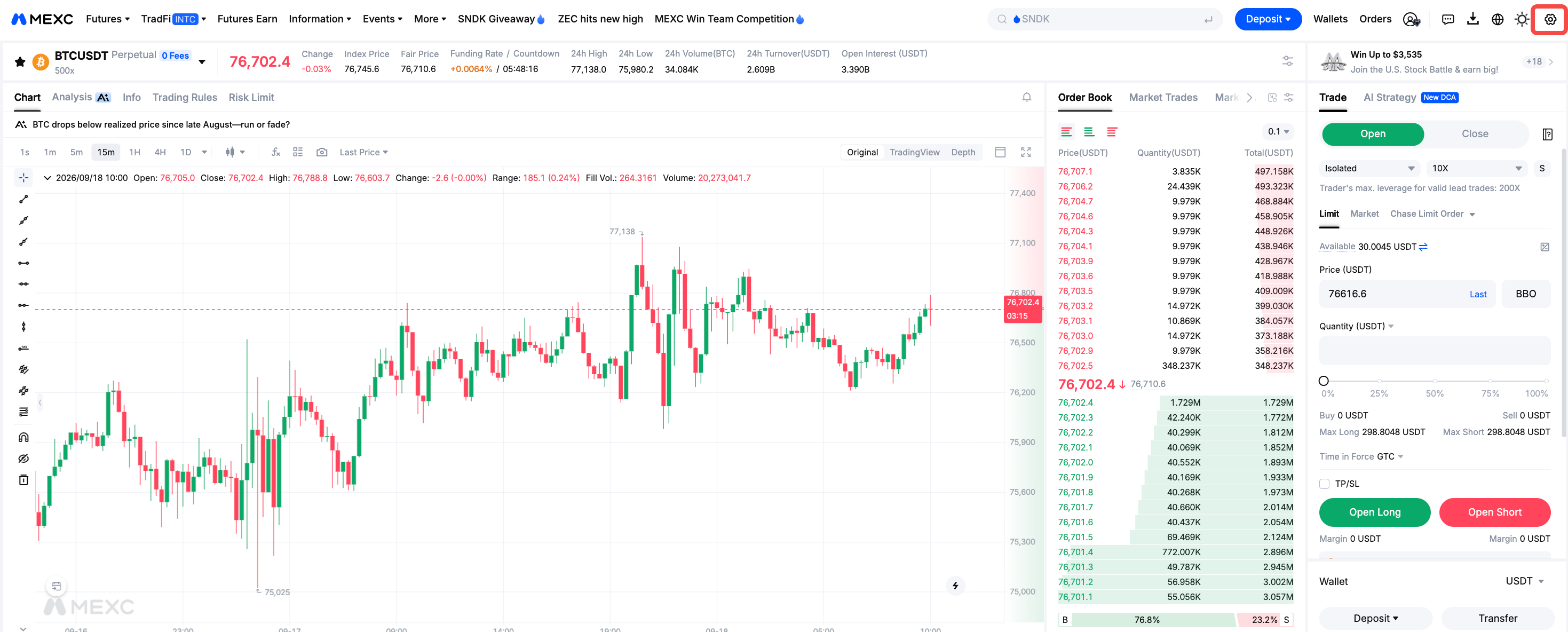
2)On the Futures trading page, click the settings icon to open the preferences page.

3)Under general settings, you can configure the following personalized features.

2.1 Account Asset Mode


Asset mode includes Single-Asset Margin and Multi-Asset Margin.

Single-Asset Margin allows Futures with the same settlement currency to share margin. When liquidation occurs, only assets in the settlement currency may be affected. This mode supports both Cross Margin and Isolated Margin.

Multi-Asset Margin allows multiple assets to be used as collateral. The value of different assets is converted into USD and used as shared margin. When liquidation occurs, multiple collateral assets may be affected. This mode only supports cross margin and is currently available for selected stablecoin Futures, including USDT, USDC, and USD1.


2.2 Position Mode


Position mode includes Hedge mode and One-Way mode.

Under Hedge mode, users can hold both long and short positions for the same Futures at the same time.

Under One-Way mode, users can only hold one position direction for the same Futures.

Users can select the appropriate mode based on their trading strategies.

2.3 Leverage Mode


Leverage Mode includes Simple mode and Advanced mode.

Simple mode means that long and short positions use the same leverage and margin mode.

Advanced mode allows long and short positions to use different leverage levels and margin modes, providing more flexibility for users with more refined trading requirements.

2.4 Price Protection


When Price Protection is enabled, if a take-profit or stop-loss (trigger order) reaches its trigger price, but the difference between the last price and fair price exceeds the set threshold, the order will not be executed.

Please note that Price Protection only takes effect after it is enabled and does not apply to existing orders created before activation.

This feature helps users avoid execution at unreasonable prices during abnormal market volatility.

2.5 Flash Trading


When Flash Trading is enabled, users only need to enter the trading amount and click Market Buy or Market Sell to quickly place an order. This feature is suitable for users who prioritize faster order execution.


2.6 Display Est. Liquidation Price


When Display Est. Liquidation Price is enabled, the order panel will display the estimated liquidation price before placing an order.

The displayed liquidation price is for reference only. The actual liquidation price depends on factors such as the average entry price, unrealized PNL, and position margin.

This setting only applies to the order panel. The estimated liquidation price displayed in the order confirmation pop-up is not affected by this setting.

2.7 Reverse Position Protection


When Reverse Position Protection is enabled, reverse position orders will strictly follow the original position amount.

If the available funds are insufficient to open a reverse position with the same amount, the reverse position order cannot be placed.

When this feature is disabled, if the available funds are insufficient, the system will place an order based on the maximum available position amount.

2.8 Other Common Features


The Hot Events feature allows users to quickly view event progress through the shortcut key FN+F10, regardless of whether it is enabled.

When Remember Order Amount is enabled, the system will save the order amount from the previous successful order, allowing users to place consecutive orders more efficiently.

The web platform also offers various customization options, including themes, confirmation pop-ups, candlestick charts, price changes, layouts, markets, candlestick opening prices, number formats, and price change percentage start times. Users can adjust these options to suit their preferences.


3. How to Set Up Futures Preferences on App


Setting up Futures preferences on the MEXC app is also simple. Follow these steps:

1)Open the MEXC app and tap Futures at the bottom of the homepage.

2)Tap the … button next to the trading pair.

3)Tap Preferences to enter the settings page.

4)On the Preferences page, users can configure Position Mode, Account Asset Modes, Leverage Mode, Trading Section Position, Chart in Trading Page, Display Est. Liquidation Price, Reverse Position Protection, Notification, Confirmation, Manage Navigation, Show Featured Events, and AI Review Card Display.


Additional app-specific feature descriptions:

Trading Section Position: Users can choose whether to place the trading section on the left or right side of the screen based on their operating preferences.

Chart in Trading Page: This setting allows users to adjust the display area of the candlestick chart in the simplified trading interface. It applies to both Spot and Futures pages.

Notification: When enabled, users will receive notifications from the MEXC app. When disabled, related notifications will not be delivered.

Confirmation: This setting includes order confirmation, cancel all orders confirmation, cancel individual order confirmation, Price Protection, and partial fill notifications for market orders. Users can enable or disable these options based on their needs.

Manage Navigation: Users can adjust the display order of different trading sections, including Futures, Stocks, TradFi, metals, crude oil, and event Futures, in the navigation bar.

Show Featured Events: When enabled, users can conveniently view the progress of featured events.

MEXC Futures preferences provide users with comprehensive customization options, covering account settings, position management, risk controls, and interface preferences.

For beginners, it is recommended to first understand key settings such as Account Asset Modes, Position Mode, and Leverage Mode, and enable risk management features such as Price Protection and Reverse Position Protection based on personal trading needs.

Properly configuring these settings can improve trading efficiency and help users better manage risks during market fluctuations.


How to Set Up MEXC Futures Preferences: A Complete Beginner's Guide

Key Takeaways:

  • MEXC Futures preferences are available on both web and app, allowing users to customize their trading experience based on personal needs.
  • Core settings include asset mode, position mode, leverage mode, and other essential trading configurations.
  • Features such as Price Protection and Reverse Position Protection help users better manage trading risks.
  • Features such as Flash Trading and Remember Order Amount improve order execution efficiency.
  • The app also supports personalized settings, including notifications, navigation bar management, and interface customization.

1. What Are MEXC Futures Preferences?


To help users create a trading environment that better suits their needs, MEXC provides comprehensive Futures preferences.

Through preferences, users can customize key trading settings, including asset mode, position mode, and leverage mode. They can also enable risk management features such as price protection and reverse position protection to create a more personalized Futures trading experience.

Whether you are new to Futures trading or an experienced trader, configuring preferences properly can make the trading process smoother and more secure. The following sections introduce the setup steps for both web and app.


2. How to Set Up Futures Preferences on Web


1)Open and log in to the MEXC website, then click Futures in the top navigation bar to enter the Futures trading page.

2)On the Futures trading page, click the settings icon to open the preferences page.

3)Under general settings, you can configure the following personalized features.


2.1 Account Asset Mode


Asset mode includes Single-Asset Margin and Multi-Asset Margin.

Single-Asset Margin allows Futures with the same settlement currency to share margin. When liquidation occurs, only assets in the settlement currency may be affected. This mode supports both Cross Margin and Isolated Margin.

Multi-Asset Margin allows multiple assets to be used as collateral. The value of different assets is converted into USD and used as shared margin. When liquidation occurs, multiple collateral assets may be affected. This mode only supports cross margin and is currently available for selected stablecoin Futures, including USDT, USDC, and USD1.


2.2 Position Mode


Position mode includes Hedge mode and One-Way mode.

Under Hedge mode, users can hold both long and short positions for the same Futures at the same time.

Under One-Way mode, users can only hold one position direction for the same Futures.

Users can select the appropriate mode based on their trading strategies.

2.3 Leverage Mode


Leverage Mode includes Simple mode and Advanced mode.

Simple mode means that long and short positions use the same leverage and margin mode.

Advanced mode allows long and short positions to use different leverage levels and margin modes, providing more flexibility for users with more refined trading requirements.

2.4 Price Protection


When Price Protection is enabled, if a take-profit or stop-loss (trigger order) reaches its trigger price, but the difference between the last price and fair price exceeds the set threshold, the order will not be executed.

Please note that Price Protection only takes effect after it is enabled and does not apply to existing orders created before activation.

This feature helps users avoid execution at unreasonable prices during abnormal market volatility.

2.5 Flash Trading


When Flash Trading is enabled, users only need to enter the trading amount and click Market Buy or Market Sell to quickly place an order. This feature is suitable for users who prioritize faster order execution.


2.6 Display Est. Liquidation Price


When Display Est. Liquidation Price is enabled, the order panel will display the estimated liquidation price before placing an order.

The displayed liquidation price is for reference only. The actual liquidation price depends on factors such as the average entry price, unrealized PNL, and position margin.

This setting only applies to the order panel. The estimated liquidation price displayed in the order confirmation pop-up is not affected by this setting.

2.7 Reverse Position Protection


When Reverse Position Protection is enabled, reverse position orders will strictly follow the original position amount.

If the available funds are insufficient to open a reverse position with the same amount, the reverse position order cannot be placed.

When this feature is disabled, if the available funds are insufficient, the system will place an order based on the maximum available position amount.

2.8 Other Common Features


The Hot Events feature allows users to quickly view event progress through the shortcut key FN+F10, regardless of whether it is enabled.

When Remember Order Amount is enabled, the system will save the order amount from the previous successful order, allowing users to place consecutive orders more efficiently.

The web platform also offers various customization options, including themes, confirmation pop-ups, candlestick charts, price changes, layouts, markets, candlestick opening prices, number formats, and price change percentage start times. Users can adjust these options to suit their preferences.


3. How to Set Up Futures Preferences on App


Setting up Futures preferences on the MEXC app is also simple. Follow these steps:

1)Open the MEXC app and tap Futures at the bottom of the homepage.

2)Tap the … button next to the trading pair.

3)Tap Preferences to enter the settings page.

4)On the Preferences page, users can configure Position Mode, Account Asset Modes, Leverage Mode, Trading Section Position, Chart in Trading Page, Display Est. Liquidation Price, Reverse Position Protection, Notification, Confirmation, Manage Navigation, Show Featured Events, and AI Review Card Display.


Additional app-specific feature descriptions:

Trading Section Position: Users can choose whether to place the trading section on the left or right side of the screen based on their operating preferences.

Chart in Trading Page: This setting allows users to adjust the display area of the candlestick chart in the simplified trading interface. It applies to both Spot and Futures pages.

Notification: When enabled, users will receive notifications from the MEXC app. When disabled, related notifications will not be delivered.

Confirmation: This setting includes order confirmation, cancel all orders confirmation, cancel individual order confirmation, Price Protection, and partial fill notifications for market orders. Users can enable or disable these options based on their needs.

Manage Navigation: Users can adjust the display order of different trading sections, including Futures, Stocks, TradFi, metals, crude oil, and event Futures, in the navigation bar.

Show Featured Events: When enabled, users can conveniently view the progress of featured events.

MEXC Futures preferences provide users with comprehensive customization options, covering account settings, position management, risk controls, and interface preferences.

For beginners, it is recommended to first understand key settings such as Account Asset Modes, Position Mode, and Leverage Mode, and enable risk management features such as Price Protection and Reverse Position Protection based on personal trading needs.

Properly configuring these settings can improve trading efficiency and help users better manage risks during market fluctuations.