क्रिप्टो खरीदें
मार्केट
स्पॉट
फ़्यूचर्सBTC
कमाएँ
इवेंट सेंटर
रिवॉर्ड हब
अधिक
How to Switch Apple ID to Download the MEXC AppHow to Switch Apple ID to Download the MEXC App
कैटेगरी की लिस्ट
कैंसिल करें

How to Switch Apple ID to Download the MEXC App

Key Takeaways

  • The region your Apple ID is set to determines which apps are available in the App Store. By switching to a supported region, you can search for and download the MEXC App.
  • On an iPhone, you can quickly switch Apple IDs by signing out of and back into your Apple ID.
  • Switching your Apple ID or its region will not affect the assets or login information in your MEXC account. The two systems are completely independent.
  • After downloading the MEXC App, we recommend enabling two-factor authentication immediately to keep your account secure.

1. Why You Need to Switch Your Apple ID to Download the MEXC App


The country or region your Apple ID is set to determines which apps you can access in the App Store. Because available apps vary by region, some users are unable to find the official MEXC app directly in their current Apple ID's region. In this case, you simply need to switch your Apple ID to a country or region where MEXC is available, and you'll be able to complete the download and installation smoothly.

2. Preparations Before Switching Your Apple ID


Before switching your Apple ID's country or region, complete the following preparations to ensure the process goes smoothly:
1)Use up your account balance: Sign in to your Apple account to check your current balance. If you have any remaining balance, spend them first. The system does not allow you to switch regions while your account still has a balance.
2)Cancel all subscriptions: This includes subscriptions such as iCloud+, Apple Music, and Apple TV+. You'll need to wait until the current subscription cycle ends before switching.
3)Wait for memberships, pre-orders, and rentals to conclude:This includes movie rentals, season passes, pending refunds, and similar purchases, all of which must be completed before you switch.
4)Prepare a payment method for the new region: After switching to the new country or region, the system will require you to link a valid payment method accepted in that region, along with a corresponding billing address.
5)Re-download any content you need: Some previously-downloaded content may no longer be usable in the new region, so we recommend re-downloading important content to your regular devices beforehand.

3. How to Switch Your Apple ID on iPhone


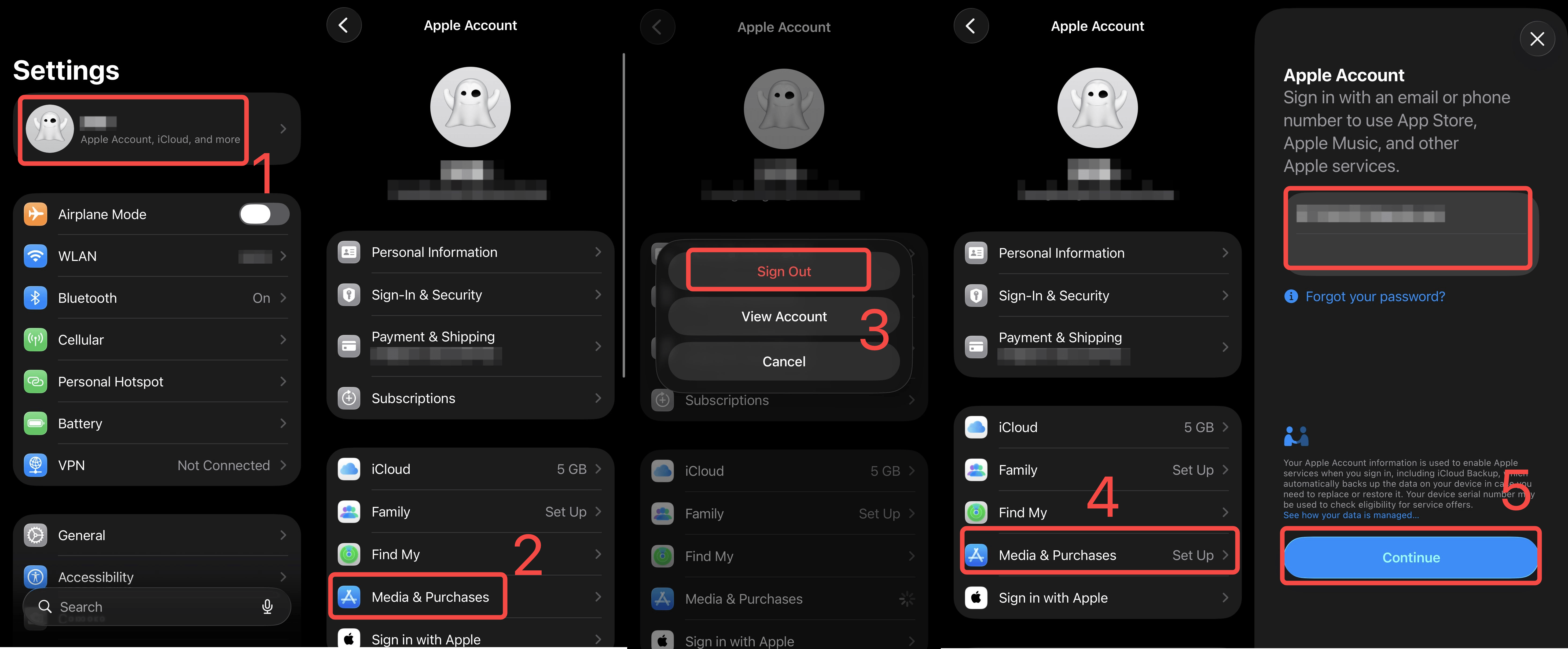
1) Open Settings on your device.
2) Tap your name at the top.
3) Tap Media & Purchases.
4) Tap Sign Out, then confirm Sign Out again.
5) Tap Media & Purchases again and sign in with the Apple ID you want to switch to. Once you've switched successfully, go to the App Store and search for MEXC App.

4. FAQ


4.1 Why can't I find the MEXC App in my current App Store?


This is usually because MEXC is not currently available in the country or region your Apple ID is set to. Just follow the steps in this guide to switch your Apple ID to a country or region where MEXC is supported, and you will be able to search for and download the MEXC App in the App Store.

4.2 After switching my Apple ID to download the MEXC App, will the assets in my original account be affected?


No. Your Apple ID and the MEXC account are two completely independent systems. Switching your Apple ID's region only affects your App Store access. It will not affect any assets or login information in your MEXC account.

4.3 Do I have to add a payment method for the new region?


If you'd rather not add a new payment method, you can create a new Apple ID after switching. Once you sign in with the new account, you can download the MEXC App.

4.4 How can I keep my account secure after downloading the MEXC App?


After logging in to the MEXC App for the first time, we recommend enabling two-factor authentication (2FA), setting a strong password, and regularly reviewing your login history. The official MEXC app provides multiple layers of security protection to help users manage their assets with confidence.

4.5 After switching my Apple ID, will my existing apps still work normally?


Most apps you've already downloaded will continue to work normally, but apps that are not listed in the new region will not receive further updates. We recommend downloading any content you need in advance before switching, and keeping backups.


How to Switch Apple ID to Download the MEXC App

Key Takeaways

  • The region your Apple ID is set to determines which apps are available in the App Store. By switching to a supported region, you can search for and download the MEXC App.
  • On an iPhone, you can quickly switch Apple IDs by signing out of and back into your Apple ID.
  • Switching your Apple ID or its region will not affect the assets or login information in your MEXC account. The two systems are completely independent.
  • After downloading the MEXC App, we recommend enabling two-factor authentication immediately to keep your account secure.

1. Why You Need to Switch Your Apple ID to Download the MEXC App


The country or region your Apple ID is set to determines which apps you can access in the App Store. Because available apps vary by region, some users are unable to find the official MEXC app directly in their current Apple ID's region. In this case, you simply need to switch your Apple ID to a country or region where MEXC is available, and you'll be able to complete the download and installation smoothly.

2. Preparations Before Switching Your Apple ID


Before switching your Apple ID's country or region, complete the following preparations to ensure the process goes smoothly:
1)Use up your account balance: Sign in to your Apple account to check your current balance. If you have any remaining balance, spend them first. The system does not allow you to switch regions while your account still has a balance.
2)Cancel all subscriptions: This includes subscriptions such as iCloud+, Apple Music, and Apple TV+. You'll need to wait until the current subscription cycle ends before switching.
3)Wait for memberships, pre-orders, and rentals to conclude:This includes movie rentals, season passes, pending refunds, and similar purchases, all of which must be completed before you switch.
4)Prepare a payment method for the new region: After switching to the new country or region, the system will require you to link a valid payment method accepted in that region, along with a corresponding billing address.
5)Re-download any content you need: Some previously-downloaded content may no longer be usable in the new region, so we recommend re-downloading important content to your regular devices beforehand.

3. How to Switch Your Apple ID on iPhone


1) Open Settings on your device.
2) Tap your name at the top.
3) Tap Media & Purchases.
4) Tap Sign Out, then confirm Sign Out again.
5) Tap Media & Purchases again and sign in with the Apple ID you want to switch to. Once you've switched successfully, go to the App Store and search for MEXC App.


4. FAQ


4.1 Why can't I find the MEXC App in my current App Store?


This is usually because MEXC is not currently available in the country or region your Apple ID is set to. Just follow the steps in this guide to switch your Apple ID to a country or region where MEXC is supported, and you will be able to search for and download the MEXC App in the App Store.

4.2 After switching my Apple ID to download the MEXC App, will the assets in my original account be affected?


No. Your Apple ID and the MEXC account are two completely independent systems. Switching your Apple ID's region only affects your App Store access. It will not affect any assets or login information in your MEXC account.

4.3 Do I have to add a payment method for the new region?


If you'd rather not add a new payment method, you can create a new Apple ID after switching. Once you sign in with the new account, you can download the MEXC App.

4.4 How can I keep my account secure after downloading the MEXC App?


After logging in to the MEXC App for the first time, we recommend enabling two-factor authentication (2FA), setting a strong password, and regularly reviewing your login history. The official MEXC app provides multiple layers of security protection to help users manage their assets with confidence.

4.5 After switching my Apple ID, will my existing apps still work normally?


Most apps you've already downloaded will continue to work normally, but apps that are not listed in the new region will not receive further updates. We recommend downloading any content you need in advance before switching, and keeping backups.