क्रिप्टो खरीदें
मार्केट
स्पॉट
फ़्यूचर्सBTC
कमाएँ
इवेंट सेंटर
रिवॉर्ड हब
अधिक
How to Use the MEXC Telegram BotHow to Use the MEXC Telegram Bot
कैटेगरी की लिस्ट
कैंसिल करें

How to Use the MEXC Telegram Bot

The MEXC Telegram Bot is a smart community management tool built specially for affiliates. It helps you automate group management, schedule content, and track performance data in real time. This guide will take you step by step through the setup process and show you how to make the most of the tool.

1. What Can the MEXC Telegram Bot Do?


Before getting started, let's explore what the MEXC Telegram Bot can do, so you can plan how to effectively manage and grow your community.

1) Manage Multiple Groups: Handle several Telegram groups from a single dashboard. There is no need to configure each group separately, which saves time and boosts efficiency.
2) Automated Content Delivery: The bot automatically shares updates on new tokens and AI-driven insights on a scheduled basis, keeping your community engaged without daily manual posting.
3) Interactive Features: Engage your members with tools like red packets, one-click trading, and AI Q&A, creating a more dynamic and lively community environment.
4) Data Analytics: Access detailed performance metrics, including group activity and member growth, to evaluate results and fine-tune your strategy in real time.
5) Earnings Tracking: Track users who register via your referral link and monitor your earnings, giving you clear visibility into your promotional performance.

2. Set Up the MEXC Telegram Bot in 5 Steps


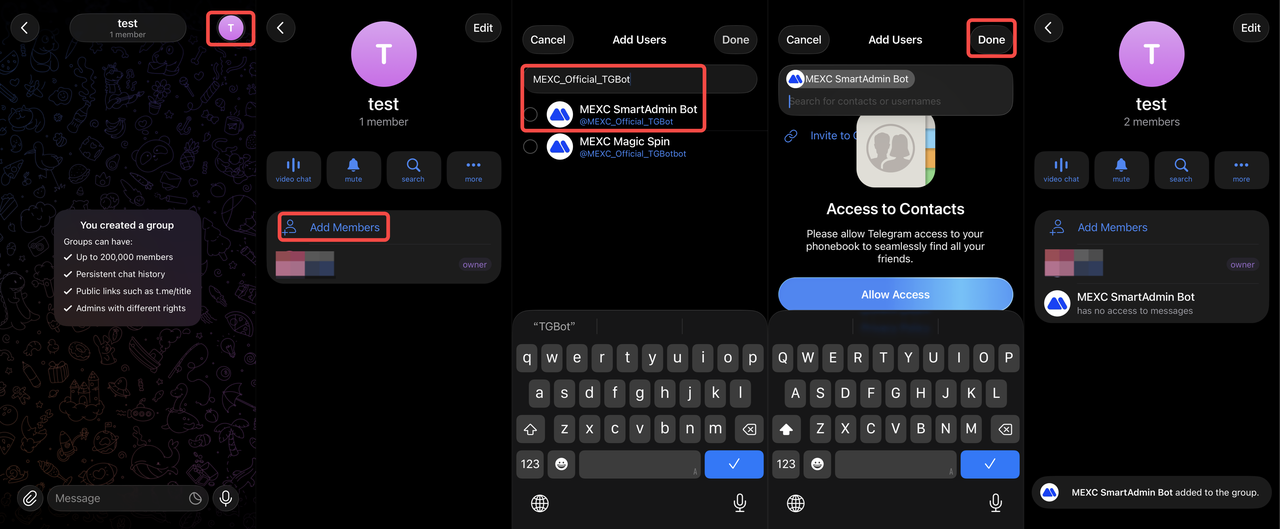
2.1 Add the Bot to a Group


1) Open the Telegram group you want to manage and tap the group avatar icon.
2) Select Add Members.
3) In the search box, type "MEXC_Official_TGBot".
4) Once you find the MEXC Bot, tap Add to include it in the group.

2.2 Make the Bot an Administrator


1) Tap the group avatar icon to open the group settings.
2) Tap Edit.
3) Scroll down the page and select Administrators.
4) Tap Add Admin.
5) Find the MEXC Bot in the list and assign it as an administrator.
6) Choose the permissions as needed and click Save Changes.


2.3 Get the Group ID


1) Tap the group avatar icon.
2) Select Add Members.
3) Search for "MyChatInfoBot" and tap on it.
4) Add the bot to the group.
5) Return to the group chat interface to view the Group ID.

The Group ID usually starts with -100, for example, -1003711620515. Be sure to copy the full number, including the negative sign, as you will need it later to link your group.


2.4 Configure the Group in the Affiliate Dashboard


1) Log in to the MEXC Affiliate Dashboard.


2) Under the Referral Strategy category, click Telegram Bot to open the configuration page.


3) Select the Group Management tab and click + Add Group.


4) Paste the group ID you copied earlier and click Save. The system will verify if the ID is correct, and once confirmed, your group will be successfully linked.


2.5 Configure Group Settings


Once your group is successfully linked, you can customize various features to fit your needs, including time zone settings, FOMO sentiment, automatic content pushes, and entry requirements.

Time Zone Settings: The bot will send the daily 3-minute content summary based on the time zone you set. For example, if most group members are in Asia, set it to UTC+8 (Beijing Time) to ensure notifications match members' schedules.

FOMO Sentiment: Adjust the bot's messaging style. When enabled, messages become more emotional and engaging, creating a lively community atmosphere. When disabled, the bot maintains a neutral, professional tone, suitable for groups that prefer a formal style.

Push Notifications Settings: Choose the type of content the bot sends, such as new token updates or AI news, and set the frequency. Avoid pushing too often to prevent overwhelming group members.

Group Entry Requirements: Set specific rules for joining the group and removing members if necessary. Note that each account can configure entry requirements for only one group.


3. View Data and Optimize Operations


After completing the setup, the MEXC Telegram Bot will automatically manage your community. Your next step is to regularly review the data and adjust your strategy based on the insights.

In the Affiliate Dashboard, you'll find two key sections:

Referral Earnings: Track users who registered through your referral link, including their earnings, number of traders, and trading volume. These metrics reflect your promotional effectiveness and actual income.

Group Data: Monitor your group's activity, such as member growth trends and message count. This data helps you identify which content resonates most and refine your push strategy accordingly.

By analyzing these insights, you can continuously optimize content delivery, adjust interaction frequency, update group entry rules, and improve overall community engagement.


By following these five steps, your MEXC Telegram Bot is fully set up and ready to manage your community. The bot can save you valuable time, boost group activity, and increase user conversion, allowing you to focus on your core business and refine your growth strategies.

How to Use the MEXC Telegram Bot

The MEXC Telegram Bot is a smart community management tool built specially for affiliates. It helps you automate group management, schedule content, and track performance data in real time. This guide will take you step by step through the setup process and show you how to make the most of the tool.

1. What Can the MEXC Telegram Bot Do?


Before getting started, let's explore what the MEXC Telegram Bot can do, so you can plan how to effectively manage and grow your community.

1) Manage Multiple Groups: Handle several Telegram groups from a single dashboard. There is no need to configure each group separately, which saves time and boosts efficiency.
2) Automated Content Delivery: The bot automatically shares updates on new tokens and AI-driven insights on a scheduled basis, keeping your community engaged without daily manual posting.
3) Interactive Features: Engage your members with tools like red packets, one-click trading, and AI Q&A, creating a more dynamic and lively community environment.
4) Data Analytics: Access detailed performance metrics, including group activity and member growth, to evaluate results and fine-tune your strategy in real time.
5) Earnings Tracking: Track users who register via your referral link and monitor your earnings, giving you clear visibility into your promotional performance.

2. Set Up the MEXC Telegram Bot in 5 Steps


2.1 Add the Bot to a Group


1) Open the Telegram group you want to manage and tap the group avatar icon.
2) Select Add Members.
3) In the search box, type "MEXC_Official_TGBot".
4) Once you find the MEXC Bot, tap Add to include it in the group.


2.2 Make the Bot an Administrator


1) Tap the group avatar icon to open the group settings.
2) Tap Edit.
3) Scroll down the page and select Administrators.
4) Tap Add Admin.
5) Find the MEXC Bot in the list and assign it as an administrator.
6) Choose the permissions as needed and click Save Changes.


2.3 Get the Group ID


1) Tap the group avatar icon.
2) Select Add Members.
3) Search for "MyChatInfoBot" and tap on it.
4) Add the bot to the group.
5) Return to the group chat interface to view the Group ID.

The Group ID usually starts with -100, for example, -1003711620515. Be sure to copy the full number, including the negative sign, as you will need it later to link your group.


2.4 Configure the Group in the Affiliate Dashboard


1) Log in to the MEXC Affiliate Dashboard.


2) Under the Referral Strategy category, click Telegram Bot to open the configuration page.


3) Select the Group Management tab and click + Add Group.


4) Paste the group ID you copied earlier and click Save. The system will verify if the ID is correct, and once confirmed, your group will be successfully linked.


2.5 Configure Group Settings


Once your group is successfully linked, you can customize various features to fit your needs, including time zone settings, FOMO sentiment, automatic content pushes, and entry requirements.

Time Zone Settings: The bot will send the daily 3-minute content summary based on the time zone you set. For example, if most group members are in Asia, set it to UTC+8 (Beijing Time) to ensure notifications match members' schedules.

FOMO Sentiment: Adjust the bot's messaging style. When enabled, messages become more emotional and engaging, creating a lively community atmosphere. When disabled, the bot maintains a neutral, professional tone, suitable for groups that prefer a formal style.

Push Notifications Settings: Choose the type of content the bot sends, such as new token updates or AI news, and set the frequency. Avoid pushing too often to prevent overwhelming group members.

Group Entry Requirements: Set specific rules for joining the group and removing members if necessary. Note that each account can configure entry requirements for only one group.


3. View Data and Optimize Operations


After completing the setup, the MEXC Telegram Bot will automatically manage your community. Your next step is to regularly review the data and adjust your strategy based on the insights.

In the Affiliate Dashboard, you'll find two key sections:

Referral Earnings: Track users who registered through your referral link, including their earnings, number of traders, and trading volume. These metrics reflect your promotional effectiveness and actual income.

Group Data: Monitor your group's activity, such as member growth trends and message count. This data helps you identify which content resonates most and refine your push strategy accordingly.

By analyzing these insights, you can continuously optimize content delivery, adjust interaction frequency, update group entry rules, and improve overall community engagement.


By following these five steps, your MEXC Telegram Bot is fully set up and ready to manage your community. The bot can save you valuable time, boost group activity, and increase user conversion, allowing you to focus on your core business and refine your growth strategies.