Simplifying Domain Management with Azure Front Door: A Step-by-Step Guide
Managing multiple Azure resources with custom domains can quickly become messy. Instead of creating separate CNAME records for each service, Azure Front Door offers a cleaner, more centralized approach. In this post, I’ll walk you through setting up Azure Front Door to manage multiple custom domains from a single endpoint.
What We’re Building
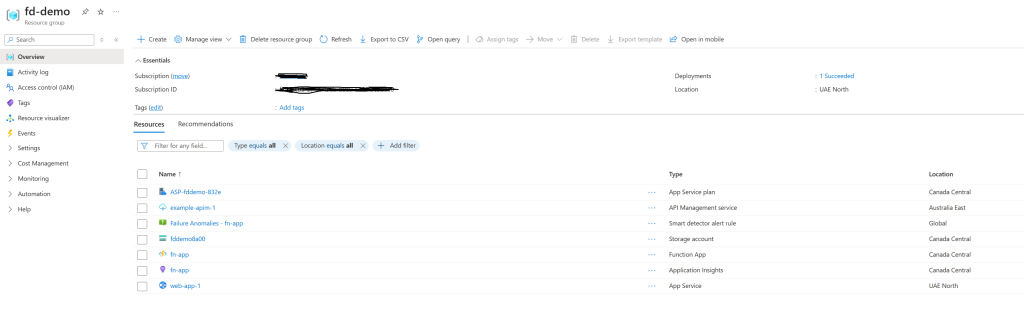
I recently set up a demo environment that showcases how Azure Front Door can streamline domain management. Here’s what I created:
Azure Resources (Resource Group: “fd-demo”):
-
API Management:
example-apim-1 -
Web App Service:
web-app-1 -
Function App:
fn-app -
Front Door:
house-door
Custom Domains:
gateway.somedns.xyz→ API Managementweb.somedns.xyz→ Web App Servicefunction.somedns.xyz→ Function App
Step 1: Add Custom Domains to Front Door
First, I added all my custom domains in the Front Door’s Domains section:
-
gateway.somedns.xyz -
web.somedns.xyz -
function.somedns.xyz
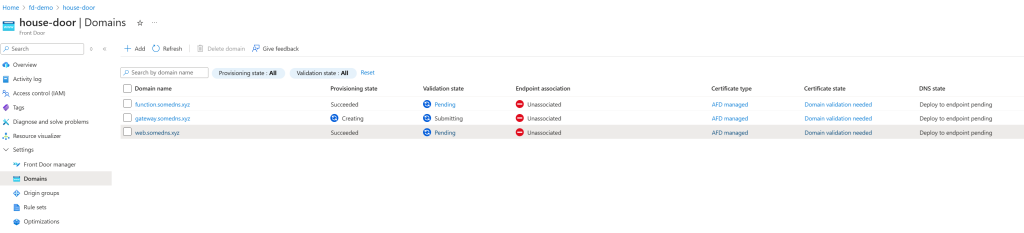
At this point, these domains are added but not yet validated or routed.
Step 2: Create Origin Groups
Next, I set up Origin Groups to define where traffic should go:
- “gateway-origin” → Added the API Management service (
example-apim-1) as the origin - “web-origin” → Added the Web App Service (
web-app-1) as the origin - “function-origin” → Added the Function App (
fn-app) as the origin
Think of origin groups as containers that hold your actual Azure resources.
Step 3: Configure Routes
In the Front Door Manager section, under my main Front Door endpoint (house-door-chfpb7buavcdaafp.a01.azurefd.net), I created routes to connect domains with their respective origin groups:
- “gateway-route” →
gateway.somedns.xyz→ gateway-origin - “web-route” →
web.somedns.xyz→ web-origin - “backend-route” →
function.somedns.xyz→ function-origin
Now Azure knows which domain should route to which service.Note: you can add more endpoints other than the default one and then add your routes.
Step 4: Update DNS Records
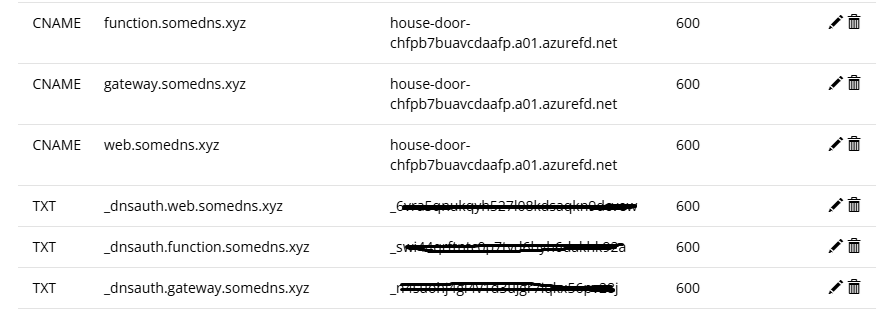
Here’s where the magic happens. Instead of creating separate CNAME records for each Azure service, I only needed to add one CNAME record in my domain registrar (Porkbun):
gateway.somedns.xyz CNAME house-door-chfpb7buavcdaafp.a01.azurefd.net web.somedns.xyz CNAME house-door-chfpb7buavcdaafp.a01.azurefd.net function.somedns.xyz CNAME house-door-chfpb7buavcdaafp.a01.azurefd.net Pro tip: You can verify DNS propagation using dnschecker.org to make sure your records are live worldwide.
Step 5: Domain Validation with TXT Records
Back in Azure, each domain will show a “Pending” validation status. For each domain:
-
Click the validation link
-
Copy the Azure-generated TXT record
-
Add it to your domain registrar
-
Wait 5-60 minutes for validation to complete
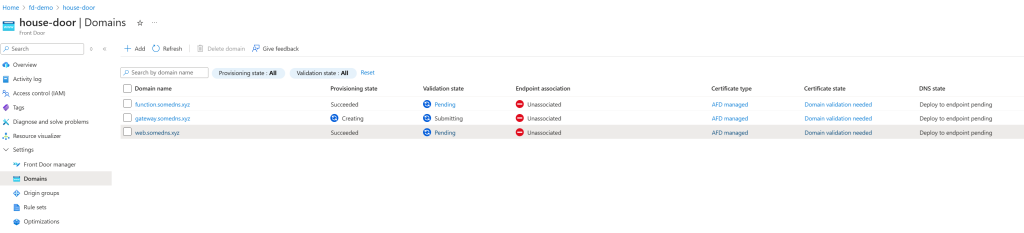
The TXT records look something like:
_dnsauth.gateway.somedns.xyz TXT "generated-validation-string"
Here is an example of how the records should look like in your domain registrar:
Step 6: Test Your Setup
Once validation is complete, all pending domains should be approved

and all routes verified:
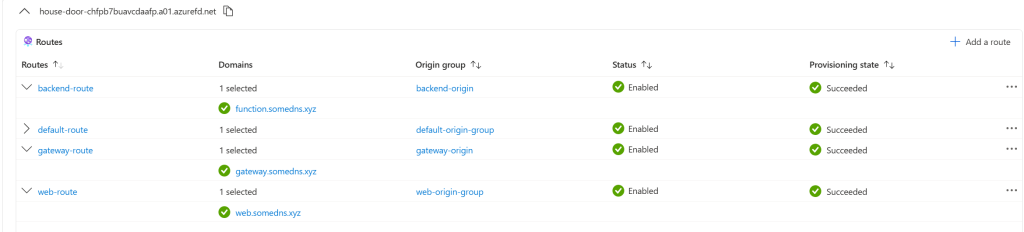
test each URL:
-
https://gateway.somedns.xyz→ Should hit your API Management -
https://web.somedns.xyz→ Should hit your Web App Service -
https://function.somedns.xyz→ Should hit your Function App

Why This Approach:
Before Front Door:
- Separate CNAME records for each Azure service
- Multiple SSL certificates to manage
- Limited traffic control and routing options
- Harder to implement global rules
With Front Door:
- Single CNAME endpoint for all domains
- Centralized SSL certificate management
- Advanced routing, caching, and security rules
- Better performance with global edge locations
- Cleaner DNS management
Conclusion
Azure Front Door transforms domain management from a scattered approach to a centralized one. Instead of juggling multiple DNS records and configurations, you get a single point of control for all your domains and traffic routing.
This setup gives you a solid foundation for adding more advanced features like custom routing rules, caching policies, and security configurations—all managed from one place.
\
You May Also Like

Ukraine drone strikes cut Russian oil exports amid price spike

USD/RUB Forecast: Gradual Rise Toward 100.0 Eyed by Commerzbank – Key Insights for Traders