Make Bank Statement PDF Text Searchable Using AI: Practical Guide
Bank statements in PDF format are often just scanned images or locked-down documents, so finding a specific transaction or pulling out details can be a real pain. If you’re prepping for audits or just trying to track your spending, it’s even more frustrating to sift through months of these files by hand.
AI-powered tools can turn those bank statement PDFs into fully searchable documents using optical character recognition (OCR) and machine learning to pull text from images and scanned pages. These tools are surprisingly good at picking up numbers, dates, transaction info, and account details. Suddenly, that static PDF becomes a document where you can instantly search for any word or number.
The whole thing takes just a few minutes and means you don’t have to type data in yourself. Whether you’ve got one statement or a giant stack, AI can make them searchable, saving time, reducing mistakes, and giving you more control over your financial records.
Understanding AI-Powered PDF Text Searchability
AI turns scanned or image-based bank statement PDFs into searchable documents by recognizing text inside images and converting it into selectable, searchable content. This works by combining optical character recognition with machine learning to understand the document’s structure and pull out the important stuff.
What It Means for Bank Statements
Most bank statement PDFs you get are just images, not real text. You can’t search for a transaction or copy an account number from those files.
AI-powered searchability changes that. Now, every bit of text in your bank statement is data you can search, highlight, and copy. The technology reads transaction dates, amounts, merchant names, and account numbers much like you would.
If you need to find a purchase from months ago, just type the merchant name. Want to see all transactions over a certain amount or search for a specific deposit? Easy. AI models also figure out which numbers are debits or credits and how subtotals connect to the final balance.
The Role of Optical Character Recognition
Optical character recognition is the backbone here. OCR scans each page and picks out characters, numbers, and symbols from the image.
Traditional OCR just tries to match what it sees to known character shapes and spits out text data your computer can use.
Modern AI adds context. An AI PDF editor can tell the difference between a zero and the letter O based on where it sits in the document. If your statement is faded or a little warped, AI-powered OCR can still get good results.
AI Versus Traditional PDF Editing Tools
Regular PDF editors let you add notes or fill forms, but they can’t make scanned images searchable unless you bolt on some basic OCR. And even then, you’ll often have to fix mistakes by hand.
AI PDF editors go further—they automatically understand the document’s structure. They spot tables, headers, and data fields without you having to mark anything. For bank statements, these tools recognize transaction tables and pull out data in a neat format.
Key Differences:
- Accuracy: AI gets better results on tricky layouts
- Automation: AI pulls out structured data with no manual setup
- Intelligence: AI knows about currency symbols and date formats
- Speed: AI handles big documents faster than old-school tools
Step-by-Step: Making Bank Statement PDFs Searchable
Turning your bank statement PDFs into searchable files means using OCR and AI tools to convert images or scanned text into real, readable data. You’ll need to pick the right software, prep your documents, run them through conversion, and check that the text is actually searchable.
Selecting the Right OCR and AI Tools
Go for a tool built for bank statement OCR. Look for software with models already trained on financial docs—they’re better at picking up banking terms, transaction layouts, and account numbers than the generic stuff.
Check if it supports PDFs, scanned images, and photos. Good picks include SearchAblePDF.org, Adobe Acrobat, and other AI-powered platforms. Many have free trials or even a free plan to try out.
If you want to connect it to other software, see if it can export to Excel, CSV, or straight into your accounting programs. That makes life a lot easier after conversion.
Uploading and Preprocessing Bank Statements
Upload your bank statement PDF to your tool of choice. Most have drag-and-drop or a simple upload button—it’s pretty straightforward.
Preprocessing helps clean up your file before OCR runs. That might mean tweaking brightness, removing background noise, or straightening out crooked pages. Most AI tools handle this for you.
If your PDF has lots of pages or different accounts, you might need to set page ranges. Some statements have sections that need separate processing, so check if your tool lets you pick specific pages or set content-based ranges.
Processing and Converting with AI
Hit the process or convert button to let the AI do its thing. The OCR scans every page and pulls out the text. Pre-trained models help the AI spot banking-specific stuff like tables, dates, and amounts.
The AI turns the visual text into machine-readable data. This usually takes seconds to a few minutes, depending on how big your file is. No need to edit bank statements during this step—the AI handles it.
Some platforms let you use a pdf editor to fix anything the OCR gets wrong. You can edit PDF text right in the tool if you spot mistakes, but honestly, the latest AI tools don’t need much manual fixing.
Verifying Text Searchability
Open your converted PDF in any standard viewer. Press Ctrl+F (or Command+F on a Mac) and try searching for a transaction amount, date, or payee name.
Test a few different things—transaction descriptions, account numbers, balance figures. If the text highlights when you search, you’re good.
If some bits aren’t searchable, you might need to run those pages again. This can happen with really bad scans or handwritten notes. Most tools handle printed text just fine, but handwriting is still tough.
Export your searchable PDF however you like. Save it as a searchable PDF, Excel, or CSV—whatever fits your workflow. Now you can find what you need without flipping through every page.
Advanced AI Techniques for Bank Statement Analysis
AI takes bank statement PDFs and turns them into searchable, structured data using OCR, machine learning, and pattern detection. These techniques pull out transaction details, spot spending trends, and boost accuracy with models trained on financial docs.
Data Extraction and Structuring with AI
AI-powered OCR reads text from your PDFs, even if they’re just scanned images. The system finds layout components like tables, headers, and transaction rows using object detection models (think YOLO, but for documents). This helps it figure out where each bit of data lives on the page.
After that, the AI breaks down individual fields—dates, descriptions, amounts, and balances. Natural language processing tidies up merchant names and standardizes formats. The result is structured JSON or CSV records with fields like transaction_id, date, description, amount, and category.
Machine learning then automatically assigns categories to each transaction. Your grocery run gets labeled “Groceries,” your utility bill as “Utilities,” and so on. The structured data loads into databases, so you can search and filter by any field instead of scrolling through endless pages.
Analyzing Transaction Patterns
AI looks through your transaction history to find patterns in spending, income, and account activity. It groups data by time, merchant, or category so you can see where your money goes. Want to check monthly expenses or spot your biggest vendors? Done.
Vector databases store transaction “embeddings” that capture the context of each entry. If you ask, “How much did I spend on restaurants last year?” the AI pulls up the right transactions and adds them up. Retrieval-augmented generation lets large language models answer your questions in plain English.
Anomaly detection flags weird transactions—big withdrawals, duplicate charges, or sudden spending spikes. These alerts help you catch errors or fraud quickly.
Using Pre-Trained AI Models for Improved Accuracy
Pre-trained models like GPT, Gemma, or Llama make it a lot easier to work with financial documents—you don’t have to reinvent the wheel. They already know a ton about financial terminology, date formats, and currency symbols, thanks to all the data they’ve seen. Just fine-tune them with some real bank statement samples, and they’ll start picking up on specific layouts or those quirky regional formats you run into.
Embedding models take transaction text and turn it into vectors that actually capture the meaning, not just the words. So, even if merchant names are a bit off, similar transactions still end up grouped together. Makes searching for related expenses less of a headache.
Pre-trained OCR engines are surprisingly accurate—up to 99.9% on financial docs—since they’re tuned to spot numbers, decimals, and currency symbols. You can keep things private by running them locally, or just use a cloud API if you’re after convenience. Tools like TruLens help check if your AI’s getting things right, measuring precision and recall so it’s not just making up numbers.
You May Also Like
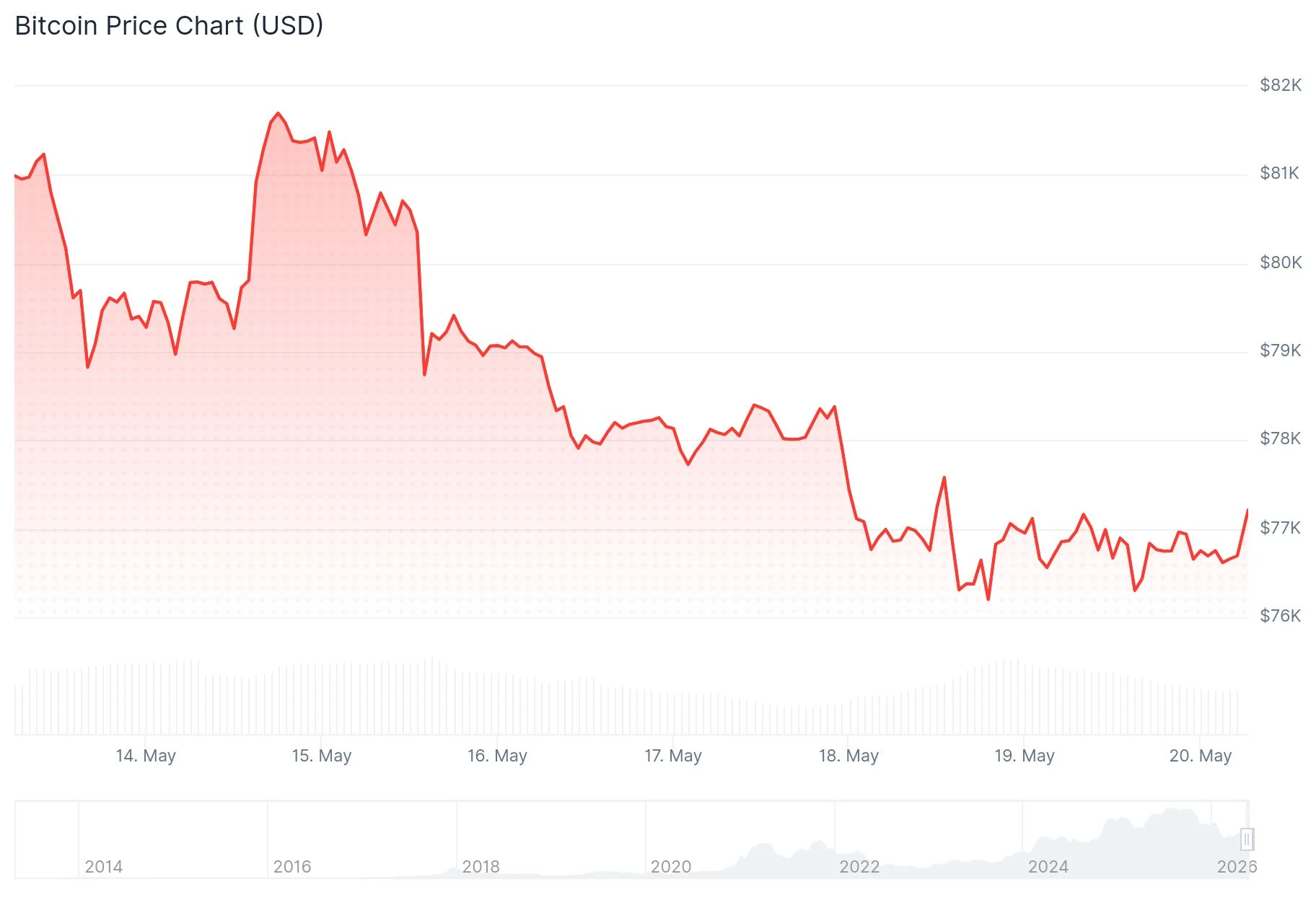
Bitcoin (BTC) Hovers Above $77K Amid Iran Diplomacy and Rising Treasury Yields

Beyond Cleaning: What Else You Must Check Before Moving Out