Complete Guide to Linking a Phone Number to Your MEXC AccountComplete Guide to Linking a Phone Number to Your MEXC Account
Category List
Cancel

Complete Guide to Linking a Phone Number to Your MEXC Account

Overview

  • Purpose of linking a mobile number: Improve account security and receive important notifications and verification codes.
  • Prerequisites: You must have signed up for a MEXC account and have a phone number that can receive SMS messages.
  • Time required: Approximately 2–3 minutes.

To better protect your assets, it is recommended that you link a phone number to your MEXC account as soon as you sign up. After linking, you can use SMS verification codes to verify actions on your account, adding an extra layer of security. The following sections explain how to link a phone number via the app and the web.


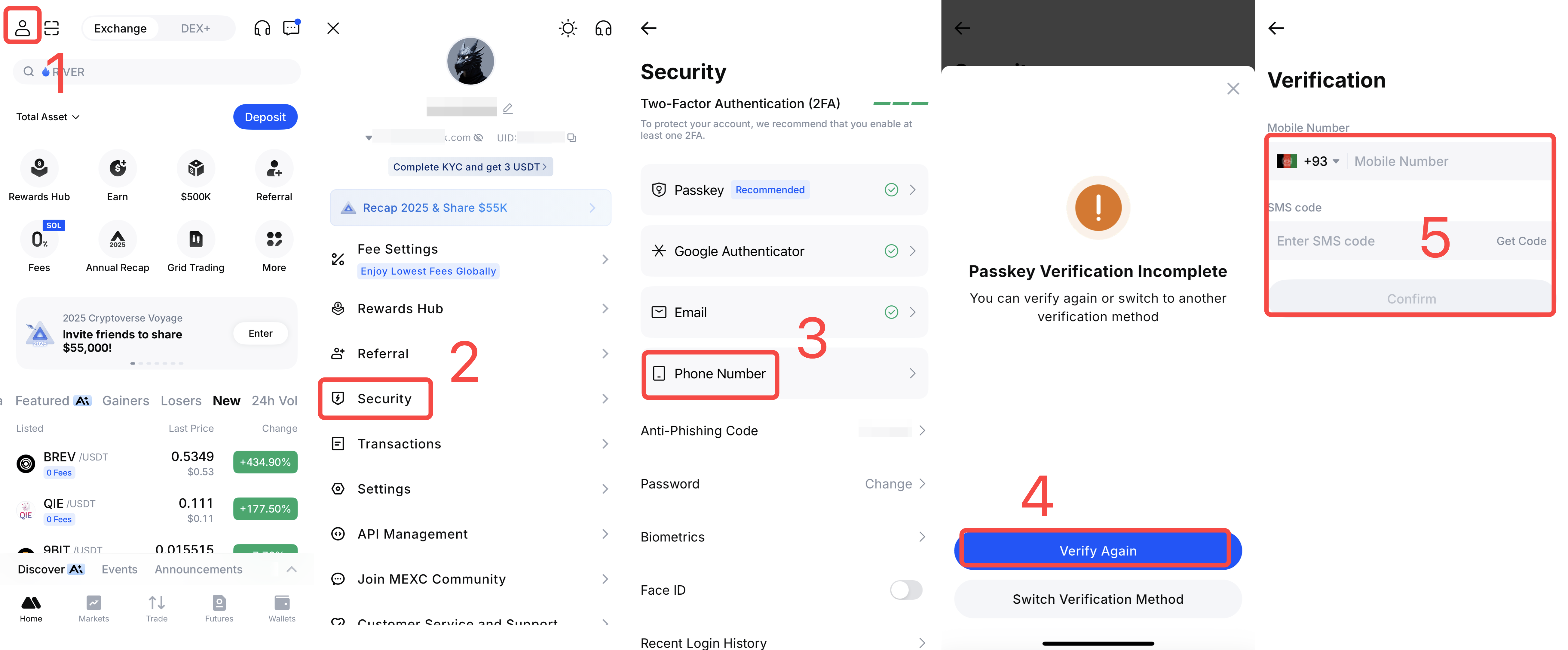
1) Open the MEXC App and log in to your account. Tap your profile icon.
2) Tap Security.
3) On the Security page, tap Phone Number.
4) The system will require you to complete two-factor verification or passkey verification to confirm that the action is performed by you.
5) After verification, enter the phone number you want to link. Tap Get Code, enter the SMS verification code you receive, and tap Confirm to complete the linking process.


Open the MEXC website and log in to your account. Hover over your profile icon and select Security from the dropdown menu.


On the Security page, locate Mobile Verification and click Set Up.


On the Mobile Verification page, click Add Phone Number to begin the linking process.


The system will require you to complete two-factor verification or passkey verification. Follow the on-page instructions.


After verification, enter the mobile number you want to link. Click Get Code, enter the SMS verification code you receive, and click Confirm to complete the linking process.


Complete Guide to Linking a Phone Number to Your MEXC Account

Overview

  • Purpose of linking a mobile number: Improve account security and receive important notifications and verification codes.
  • Prerequisites: You must have signed up for a MEXC account and have a phone number that can receive SMS messages.
  • Time required: Approximately 2–3 minutes.

To better protect your assets, it is recommended that you link a phone number to your MEXC account as soon as you sign up. After linking, you can use SMS verification codes to verify actions on your account, adding an extra layer of security. The following sections explain how to link a phone number via the app and the web.


1) Open the MEXC App and log in to your account. Tap your profile icon.
2) Tap Security.
3) On the Security page, tap Phone Number.
4) The system will require you to complete two-factor verification or passkey verification to confirm that the action is performed by you.
5) After verification, enter the phone number you want to link. Tap Get Code, enter the SMS verification code you receive, and tap Confirm to complete the linking process.


Open the MEXC website and log in to your account. Hover over your profile icon and select Security from the dropdown menu.


On the Security page, locate Mobile Verification and click Set Up.


On the Mobile Verification page, click Add Phone Number to begin the linking process.


The system will require you to complete two-factor verification or passkey verification. Follow the on-page instructions.


After verification, enter the mobile number you want to link. Click Get Code, enter the SMS verification code you receive, and click Confirm to complete the linking process.