

How to Use MEXC on the Web Without Installing the App
This guide explains how to access MEXC through a browser on your smartphone or computer without installing the app.
If you cannot download the app, you can continue using MEXC through the web version. Add a shortcut to your home screen for quick access and an app-like experience. Your existing MEXC account can be used without any changes.
1. Step-by-Step Guide
Step 1: Open the official MEXC website in your browser
Open the official MEXC website in Safari (iPhone) or Chrome (Android), and log in with your existing MEXC account.
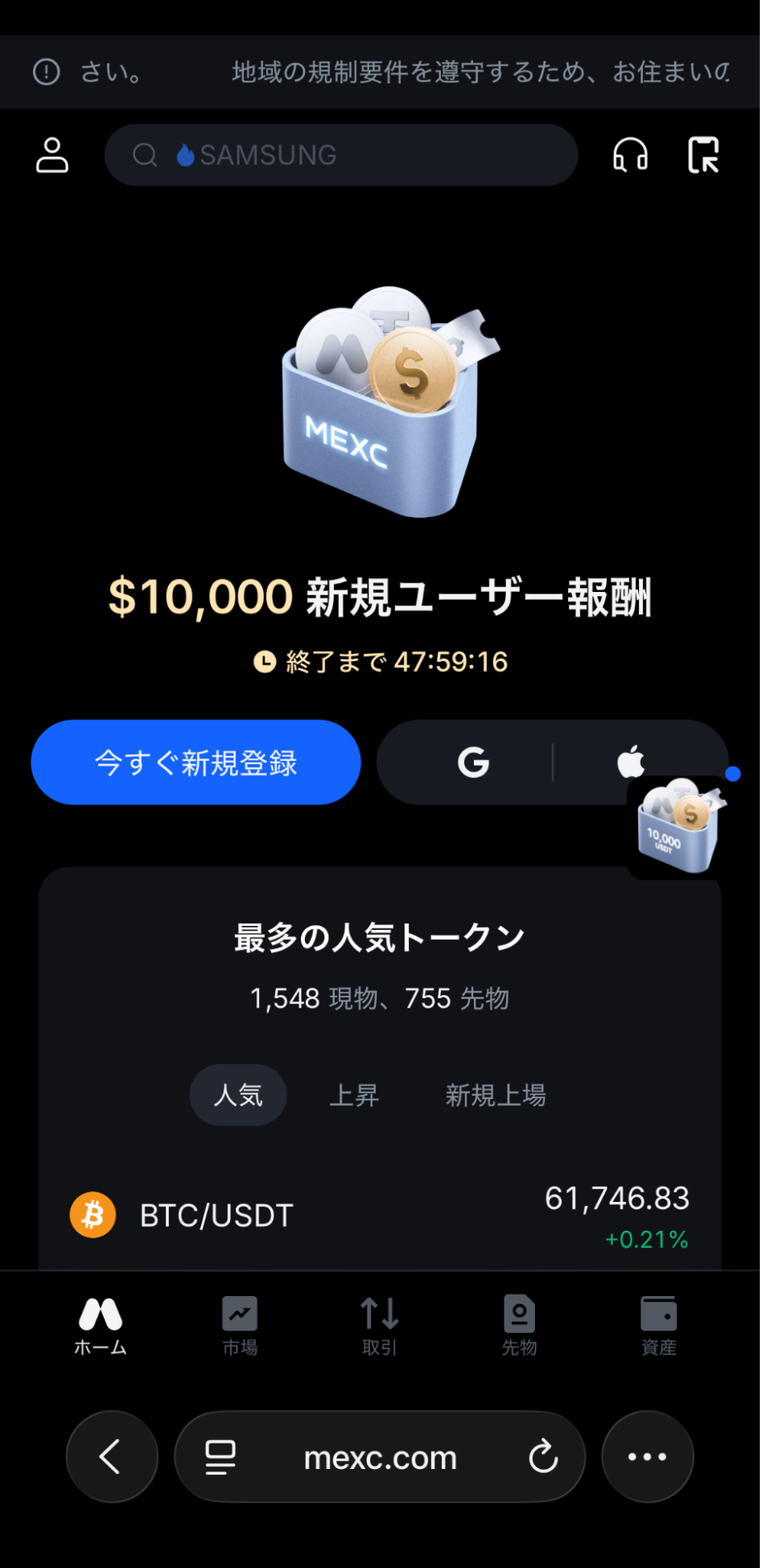
Step 2: Add MEXC to your home screen
iPhone (Safari): Tap Share, select Add to Home Screen, then tap Add in the top-right corner. Depending on your iOS version, Add to Home Screen may also appear directly in the Share menu.
Android (Chrome): Tap the menu icon in the top-right corner (⋮) → Add to Home Screen
Step 3: Open MEXC from your home screen
Tap the newly added MEXC. It will launch in a way similar to an app.
If you encounter any issues during installation, visit the MEXC Help Center or contact the official MEXC community for support.
2. FAQ
2.1 Can I use the web version for the same features as the app?
The web version supports the main features, including trading, deposits and withdrawals, and asset management.
Some app-specific features, such as push notifications, may not be available. If you install the app later, you can continue using the same MEXC account.
2.2 Do I need to create a new MEXC account?
No. Simply log in with your existing MEXC account.
2.3 I deleted the icon from my home screen. What should I do?
You can add it again at any time by following the same steps:
Open the official MEXC website in your browser → Add to Home Screen
2.4 What if I want to install the app later?
You can install the app at any time. Follow the guide for your device: Complete Guide to Downloading and Updating the MEXC App (iPhone / Android / Web)