

How to Use MEXC Passkeys (App)
Summary
- Key advantages: Easier operation, higher security, and effective protection against phishing attacks.
- Device requirements: iOS 16.0.0 or Android 9.0 or later.
- Main use cases: Can be used for account login and withdrawals. Up to 10 passkeys can be added.
- Reminder: Passkeys are stored on your device. Please keep your device secure.
A passkey is a new authentication technology that allows users to log in quickly using fingerprints, facial recognition, or a device screen lock (such as a PIN). Passkeys are easy to use, highly secure, and can coexist with traditional passwords, effectively protecting against threats such as phishing attacks.
1. How to Set Up and Manage Passkeys
Currently, the passkey feature is supported on devices running iOS 16.0.0 or Android 9.0 or later. The following steps use the iOS version as an example.
Note: Due to country, regional restrictions, or device limitations (such as lack of Google services support), some devices may not be able to use the passkey feature.
1.1 Set Up a Passkey
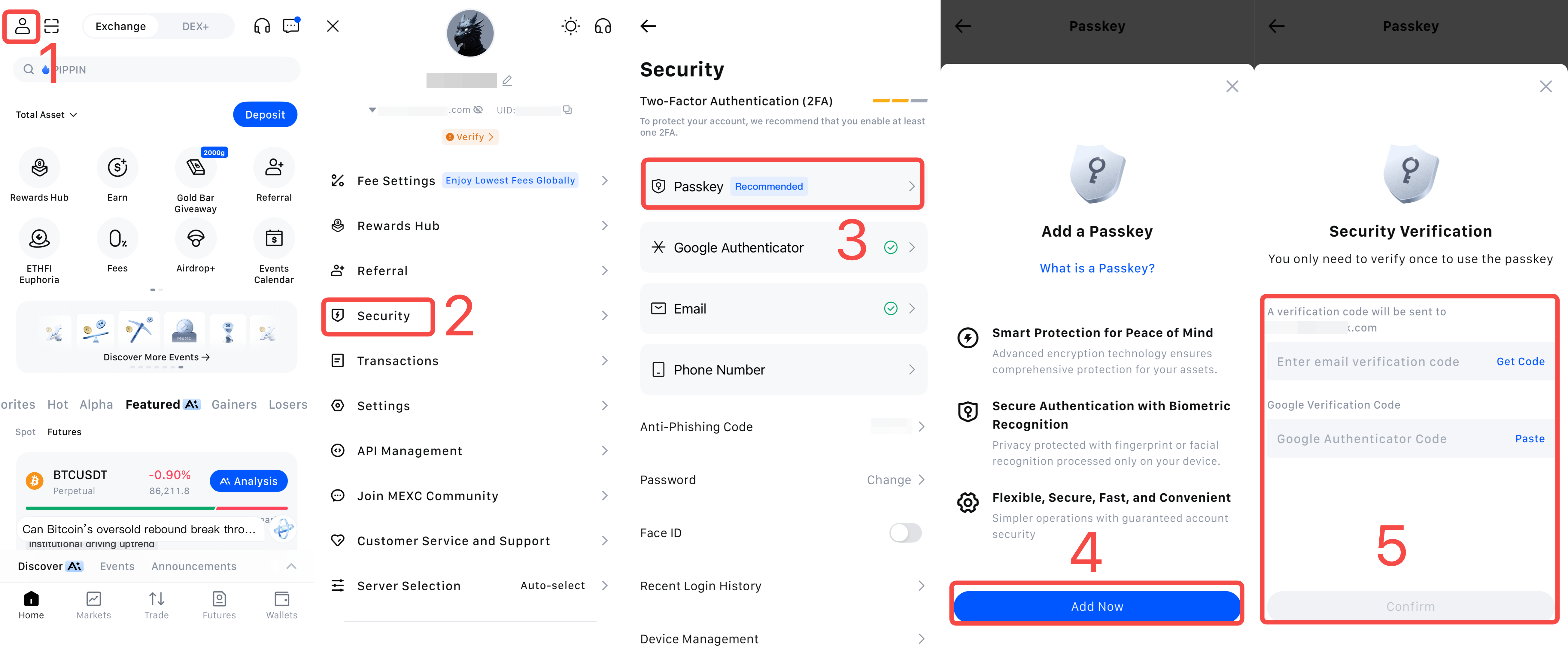
1) Open the MEXC App and log in. Tap your profile icon on the home page.
2) Tap Security.
3) Select Passkey.
4) On the Passkey page, tap Add Now.
5) Enter the email (or mobile) verification code and Google Authenticator code, then tap Confirm. After completing biometric authentication, the passkey will be successfully created.
1.2 View, Edit, and Delete Passkeys
After entering the Passkey page, you can view a list of all passkeys you have set up. To add more passkeys, tap Add Passkey at the bottom of the page. You can add up to 10 passkeys in total.
If you want to rename a passkey for easier management, tap the pencil icon to edit it. To delete a passkey that is no longer in use, tap the delete button on the far right.
2. How to Use Passkeys
2.1 Use a Passkey for Withdrawals
The following withdrawal example is demonstrated using the iOS version.
1) Open the MEXC App and log in, then tap Wallets.
2) On the Wallets page, select Withdraw.
3) Choose the cryptocurrency you want to withdraw, such as USDT, and enter "USDT" in the search bar.
4) Tap the USDT token from the search results.
5) Select On-chain Withdrawal as the withdrawal method.
6) Enter the Withdrawal Address and Withdrawal Quantity, and select the Withdrawal Network.
7) After confirming the information, tap Confirm.
8) Review your withdrawal details again and tap Confirm Withdrawal.
If you have already set up a passkey, simply complete biometric authentication or enter your device password after tapping Confirm Withdrawal to complete the process.
If you have not yet set up a passkey, the system will prompt you to Add a Passkey after you tap Confirm Withdrawal.
9) Tap Add Now.
10) Enter the email or mobile verification code and the Google Authenticator code, then tap Confirm. After completing biometric authentication, the passkey will be successfully created.
After this, you will no longer need to enter 2FA codes for withdrawals. You only need to complete biometric authentication or enter your device password.
2.2 Use a Passkey to Log In
1) Enter your MEXC-linked email address or mobile number, then tap Next.
2) Complete the slider verification.
3) Log in to the MEXC App using biometric authentication.
Using passkeys for login and withdrawals not only simplifies the process and improves efficiency, but also significantly enhances security by effectively preventing online attacks and protecting your assets.
Note: Passkeys are stored on your device. Be sure to keep your phone and other devices secure to avoid unnecessary losses caused by device loss.