Kripto al
Bazarlar
Spot
FuturesBTC
Earn
Tədbir mərkəzi
Mükafat mərkəzi
Daha çox
How to Use the MEXC Futures Chase Order FunctionHow to Use the MEXC Futures Chase Order Function
Kateqoriya siyahısı
Ləğv edin

How to Use the MEXC Futures Chase Order Function

1. What is a Chase Order?


The Chase Order function re-submits an order as a limit order at the current market's best bid price. Currently, the MEXC platform's futures chase order function is only supported in hedge mode.

2. Advantages of Chase Orders


To improve trading efficiency, MEXC has introduced the chase order function to address the issue of limit orders not being executed for a long period of time.

In most cases, users can choose to cancel their current order and create a new one, updating the order price to the latest market price promptly. With the chase order function, users can re-submit a limit order at the current market's best bid price with just one click. The chase order operation does not change the original order quantity, and the order type remains a Maker order, incurring no additional fees.

The chase order function simplifies the operation process and increases the chances of order execution, thereby improving trading efficiency.

3. How to Use the Limit Order Chase Function


We will demonstrate using USDT-M perpetual futures.

3.1 Web


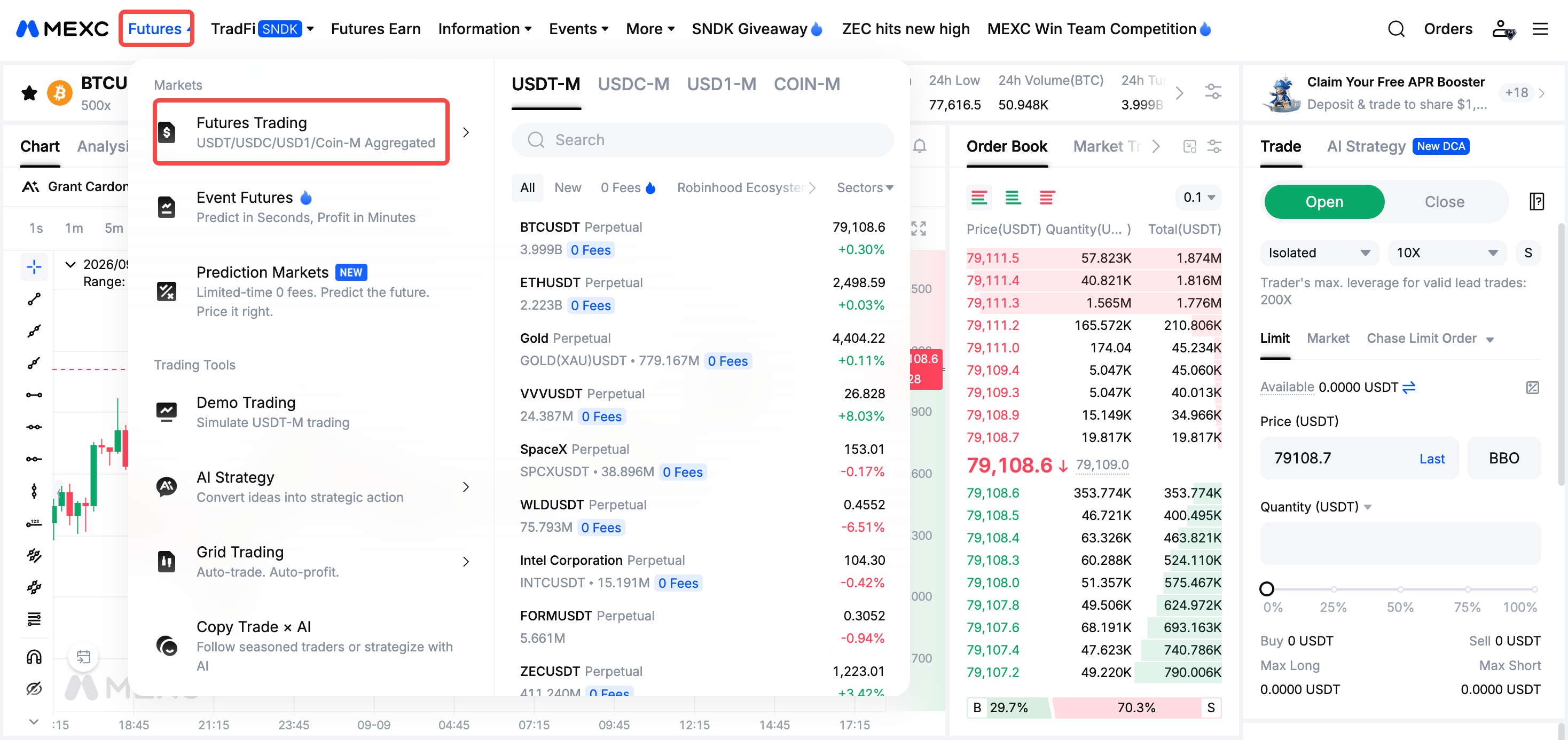
Open the MEXC official website and log in to your account. Under the [Futures] tab, select [USDT-M Perpetual Futures] to enter the trading page, and create a limit order in the order placement area on the right.

Scroll down the page to view the limit order you created in the [Open Order] section. Click the [Chase] button.


If you have enabled the "Order Confirmation Window" setting in "Preferences", a "Confirm Chase Order" popup will appear after clicking the Chase button. You can then perform a secondary confirmation of the chase order action. Once confirmed, click [OK] to complete the chase order operation.

If you have not enabled the "Order Confirmation Window" setting in "Preferences", the chase order operation will be completed immediately after clicking the Chase button.


After passing the order rationality verification, risk limit verification, asset balance verification, and liquidation risk verification, the chase order will be placed successfully. Your original limit order will be re-submitted as a limit order at the current best bid price. Once the limit order is executed, it will be displayed under [Open Position].

If the checks are not passed, the chase order will fail, and the system will display a prompt informing you of the reason.


3.2 App


1)Open the MEXC App and log in to your account. Then, tap the [Trade] button at the bottom of the homepage.

2)On the trading page, select the [Futures] tab at the top to switch to the futures trading page.

3)Create a limit order.

4)Scroll down the page, find your created limit order under [Open Orders], and tap the [Chase] order button.

5)Tap on [Confirm].

6)After passing the order rationality verification, risk limit verification, asset balance verification, and liquidation risk verification, the chase order will be placed successfully. Your original limit order will be re-submitted as a limit order at the current best bid price. Once the limit order is executed, it will be displayed under [Positions].

If the checks fail, the chase order will fail, and the system will display a prompt informing you of the reason.


How to Use the MEXC Futures Chase Order Function

1. What is a Chase Order?


The Chase Order function re-submits an order as a limit order at the current market's best bid price. Currently, the MEXC platform's futures chase order function is only supported in hedge mode.

2. Advantages of Chase Orders


To improve trading efficiency, MEXC has introduced the chase order function to address the issue of limit orders not being executed for a long period of time.

In most cases, users can choose to cancel their current order and create a new one, updating the order price to the latest market price promptly. With the chase order function, users can re-submit a limit order at the current market's best bid price with just one click. The chase order operation does not change the original order quantity, and the order type remains a Maker order, incurring no additional fees.

The chase order function simplifies the operation process and increases the chances of order execution, thereby improving trading efficiency.

3. How to Use the Limit Order Chase Function


We will demonstrate using USDT-M perpetual futures.

3.1 Web


Open the MEXC official website and log in to your account. Under the [Futures] tab, select [USDT-M Perpetual Futures] to enter the trading page, and create a limit order in the order placement area on the right.


Scroll down the page to view the limit order you created in the [Open Order] section. Click the [Chase] button.


If you have enabled the "Order Confirmation Window" setting in "Preferences", a "Confirm Chase Order" popup will appear after clicking the Chase button. You can then perform a secondary confirmation of the chase order action. Once confirmed, click [OK] to complete the chase order operation.

If you have not enabled the "Order Confirmation Window" setting in "Preferences", the chase order operation will be completed immediately after clicking the Chase button.


After passing the order rationality verification, risk limit verification, asset balance verification, and liquidation risk verification, the chase order will be placed successfully. Your original limit order will be re-submitted as a limit order at the current best bid price. Once the limit order is executed, it will be displayed under [Open Position].

If the checks are not passed, the chase order will fail, and the system will display a prompt informing you of the reason.


3.2 App


1)Open the MEXC App and log in to your account. Then, tap the [Trade] button at the bottom of the homepage.

2)On the trading page, select the [Futures] tab at the top to switch to the futures trading page.

3)Create a limit order.

4)Scroll down the page, find your created limit order under [Open Orders], and tap the [Chase] order button.

5)Tap on [Confirm].

6)After passing the order rationality verification, risk limit verification, asset balance verification, and liquidation risk verification, the chase order will be placed successfully. Your original limit order will be re-submitted as a limit order at the current best bid price. Once the limit order is executed, it will be displayed under [Positions].

If the checks fail, the chase order will fail, and the system will display a prompt informing you of the reason.